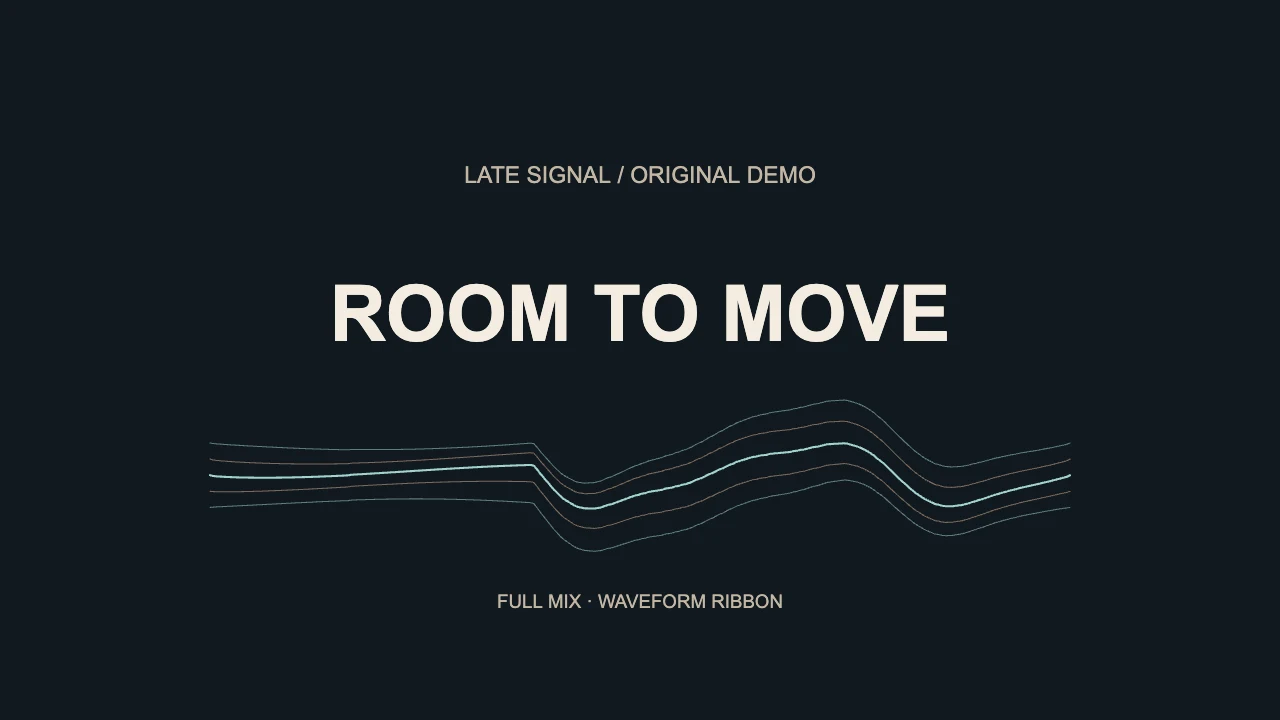
To make a waveform animation from audio, load your recording, choose a style driven by the audio signal, adjust its movement and position, then export a video with the sound included. In VisualizerWave, Waveform Ribbon provides a layered, audio-driven line. Start with restrained movement and check the loudest passage before adding effects.
An animated waveform represents changes in the signal over time. A frequency spectrum separates the sound into bands; a decorative wave can move without tracing your recording. The waveform versus spectrum guide explains which kind of motion suits your track.
Below is a worked example, followed by the composition, response and smoothing decisions that help a visualizer animation feel intentional.
Make an audio waveform animation in five steps
1. Load the recording and choose your canvas
Use a finished audio file you have permission to publish. Start with a landscape canvas for a YouTube release, or build a separate vertical composition for a short social clip. For the complete import and export workflow, follow the music visualizer setup guide.
The six-second visual example shows restrained movement, stronger movement, then the design settling. It loops silently so you can focus on the composition.
2. Select Waveform Ribbon
Select the visualizer element and choose Waveform Ribbon in Style. This style draws several strands from the real mono waveform, with a gentle decorative drift layered into the motion.
It uses the full mix. It is not a bass-isolated trace, a drawing of the entire song, or a scientific measurement display. During silence, the strands retain their designed shape and slight drift. If you need a channel-driven scope composition, use the oscilloscope visualizer tutorial.
3. Set the movement before adding effects
Use these values to reproduce the revised example:
| Control | Example setting | Purpose |
|---|---|---|
| Style | Waveform Ribbon | Draw the audio-driven strands |
| Sensitivity mode | Standard | Keep a consistent response for this comparison |
| Sensitivity | 1 | Leave the response gain at its starting value |
| Movement | 0.8 | Reduce the size of the signal-driven excursions |
| Scale | 0.8 | Give the overall shape less space in the frame |
| Offset X / Offset Y | 0 / 80 | Put the ribbon below the title in this landscape layout |
| Beat zoom, shake and post-processing | Off | Judge the underlying animation clearly |
Movement may be labeled Reactivity in the legacy inspector. In the contextual inspector, expand More controls for Music response and exact layout offsets. Dragging the element in the preview is useful for positioning; the numbers above describe this example, rather than a universal safe area.
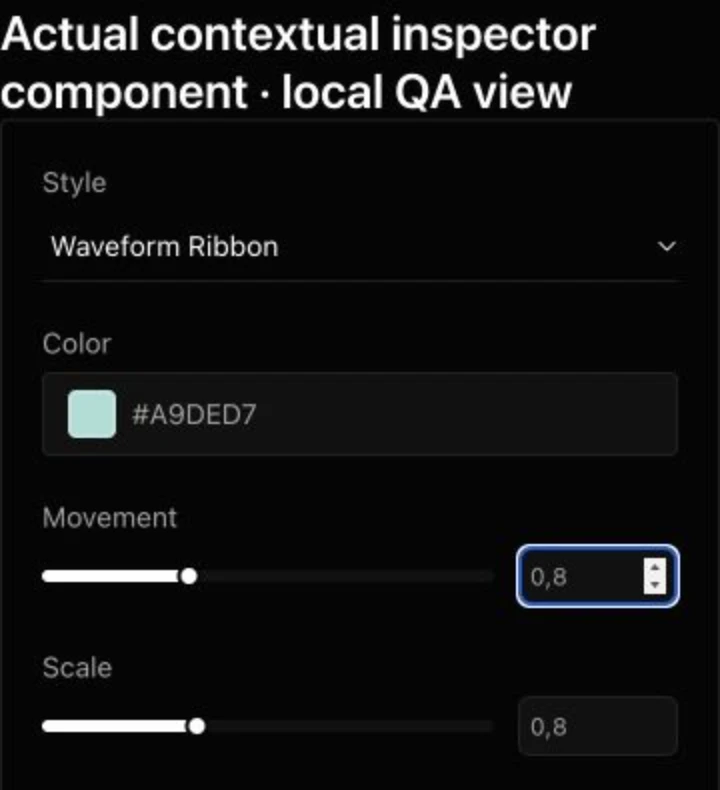
Genuine capture of the product's inspector component in a local test view. The numeric fields use a decimal comma in this browser's locale; 0,8 means 0.8.
Waveform Ribbon has no smoothing control in the contextual inspector. Reduce Movement or Sensitivity if the trace feels excessive, or reduce Scale if the entire element is too large.
4. Leave room for the strongest movement
The comparison below uses the same audio at the same timestamp, with the same colors, text and disabled effects. Three settings change together: Movement, Scale and vertical position.
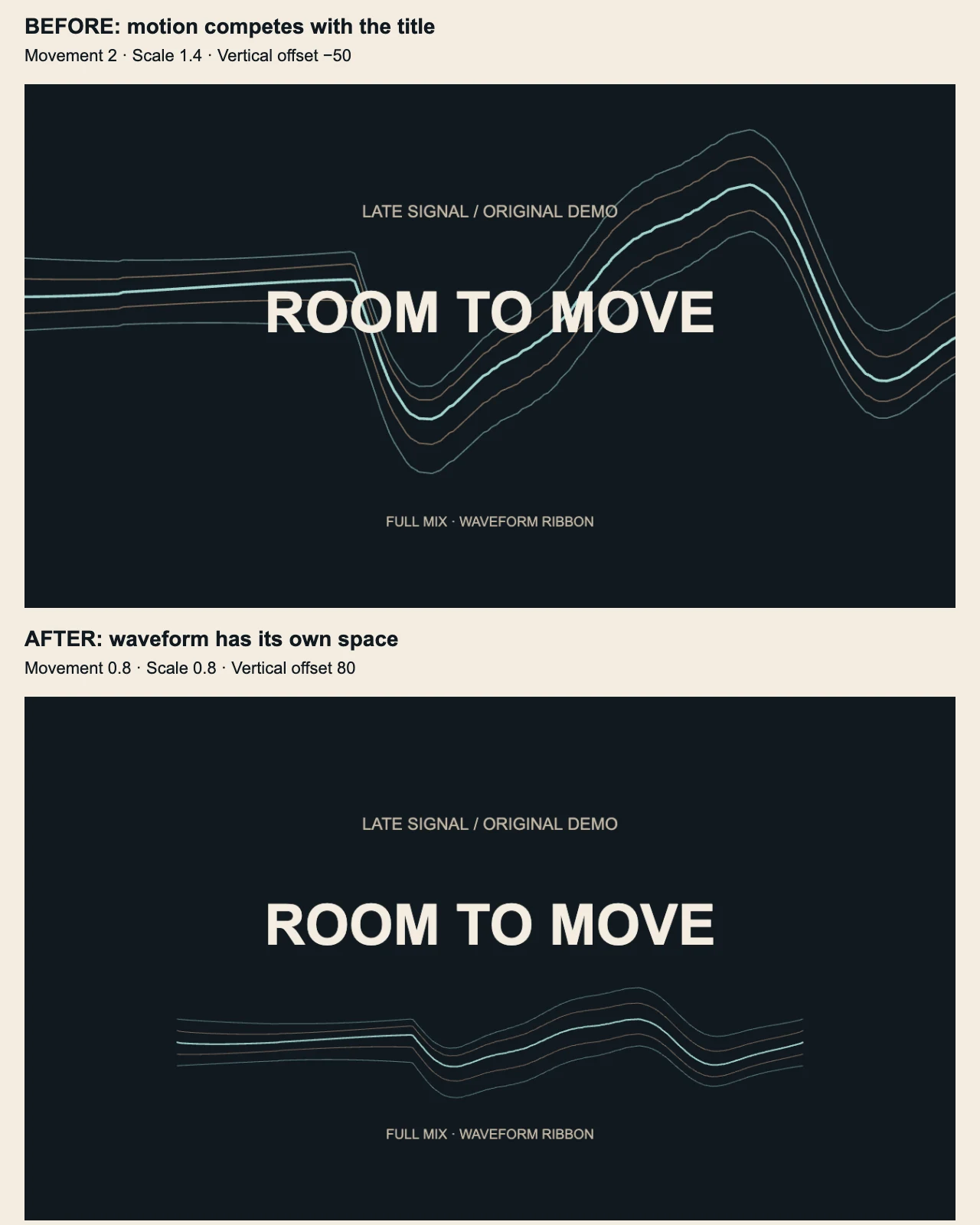
In the first layout, Movement is 2, Scale is 1.4 and Offset Y is −50. The waveform crosses the title and extends beyond the sides. In the revised layout, Movement and Scale are both 0.8, with Offset Y at 80. The title now has its own space.
Compare the smaller and larger movements in these actual VisualizerWave renderer outputs. The animation has no audio track. The comparison shows a combined layout correction; it does not isolate the effect of one slider.
5. Preview a short export
Check a quiet passage, a strong passage and a transition. Export a short section first, then open the downloaded video and check both the animation and sound. A balanced preview is only part of the job: titles must remain readable in the exported file too.
This worked example was exported at 1280 × 720, 30 fps, MP4. Those are demonstration settings. Choose your final resolution using the export options supported on your device, and run the compatibility test before a demanding render.
Start with the role of the visualizer
Decide what the animation should do in the composition:
- Frame the artwork: a radial spectrum around the cover can give the artwork a moving frame while keeping its details visible.
- Create a horizon: a minimal line or mirrored-bar composition can anchor the frame while leaving room for the title.
- Become the subject: a large waveform or stereo scope composition can lead when the background is minimal.
- Add pulse: a small visualizer plus restrained beat zoom can give a still image controlled movement.
- Overlay an existing edit: use the music bar compositing guide for a separate bright-bar layer and Screen blending.
- Use a 3D sculpture: the Chrome shape tutorial shows built-in reflective geometry, bass-driven separation and continuous rotation.
Choose one focal point before adding colors and effects. If the cover is the focus, keep the visualizer clear of faces and important artwork details.
Frequency response is your animation timing
For frequency-reactive spectrum styles, the part of the mix driving the visual changes its character. Bass can emphasize kick and low-end movement; mids can follow vocals, guitars and synths; highs can bring out fast percussion.
In the spectrum's Music response controls, React to offers Full mix, Bass, Mids and Highs. Preview a verse and a drop before deciding. Bass contains more than the kick, so selecting Bass does not isolate that instrument.
These controls do not turn Waveform Ribbon into a filtered waveform. Its real waveform uses the full mix. Choose a spectrum style when selective frequency response is part of your design.
Reactivity and smoothing create character
Reactivity controls the strength of the response. In styles that support it, smoothing blends movement between frames: higher values retain more of the previous response and can soften sudden changes. It does not repair the recording or smooth every visualizer style.
| Design goal | Starting adjustment | What to watch |
|---|---|---|
| Quiet ambient music | Lower movement; more smoothing in a supported spectrum | Keep enough motion to read on a phone |
| Punchy hip-hop | Moderate movement and smoothing; try bass response | Avoid filling the title area on each kick |
| Fast electronic or drum and bass | Leave room for rapid changes; avoid excessive smoothing | Check whether successive hits blur together |
| Acoustic or vocal-led music | Restrained movement; compare full mix and mids in a spectrum | Let the performance and artwork remain dominant |
Treat these as creative starting points. A heavily limited master and a dynamic mix can need different settings. Change one response control at a time when you want to understand its effect.
Use Beat Effects as punctuation
Zoom, shake and glitch can make a drop feel larger, but constant strong effects reduce contrast. First make the waveform or spectrum work by itself. Then try a little beat zoom, adding shake only when that physical movement suits the track.
For the worked example, all beat movement stays off. Keep that clean version as a reference when deciding whether an effect helps.
Build depth with restraint
Post-processing can change the whole frame:
- Bloom can separate a bright line from a dark background; too much can blur its shape.
- RGB split and glitch can add tension, but preview the title during strong motion.
- CRT and grain can support a retro treatment. The vintage audio visualizer tutorial compares clean and heavy texture on an amber spectrum.
- Blur and glass treatments work best when important text remains sharp.
Where needed, use Keep text & logo sharp in the effects controls. Preserve a clean version so you can judge the effect against the underlying composition.
Compose text for the destination
Keep the artist name, track title and featured-artist credit in a clear reading order. A long credit line usually needs a smaller, separate text element. Choose a font that stays readable at the size viewers will actually see; a display font can work for a short title while credits benefit from simpler lettering.
A landscape video can use width. A vertical Reel needs a tighter hierarchy, so reposition the title and visualizer for that ratio. Keep essential text away from the edges where platform controls may cover it, and preview the strongest movement again after changing the layout.
Save a design you can reuse
Check the quiet intro, loudest chorus and a vocal or melodic passage before the final render. Save an important design as a portable .visualizerwave project so its audio, artwork, text and settings travel together.
VisualizerWave performs audio analysis and video rendering on your computer. MP4 and WebM export options, including higher resolutions, depend on browser and device support. The license is $19 once and includes unlimited exports.