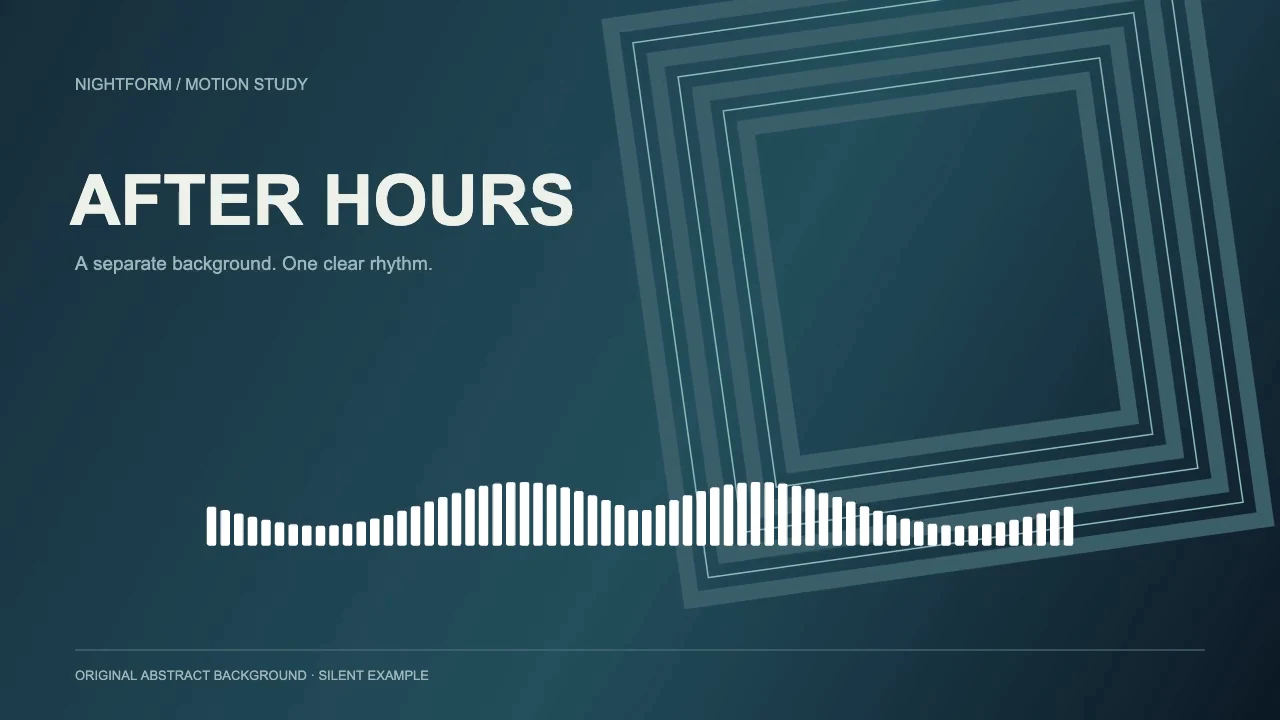
To add a music bar overlay to an existing video, create bright audio-reactive bars on a pure black background, export them, then place that clip above your footage in an editor with Screen blending. Align it with the same section of music and keep one soundtrack active. Screen lets the dark background fall away while the bright bars remain visible.
This is an external compositing workflow: VisualizerWave makes the bar video, and a separate editor combines it with your existing video. A black-background MP4 is not a transparent export. The worked example uses FFmpeg to combine the two files; you can also use a timeline editor that exposes Screen blending.
The finished overlay
Six seconds, 1280 × 720 at 30 fps. The bars use the actual VisualizerWave renderer and exporter; the original geometric background was made separately, then the files were composited with FFmpeg. Motion uses illustrative numerical values, not an analyzed song. The example contains no audio track.
The same method works with a recording-driven bar export. Use your own finished track to drive the bars, then line that export up with the soundtrack in your edit.
Choose the kind of music bar you need
The phrase can mean several different graphics:
| Graphic | What it communicates | What you need |
|---|---|---|
| Reactive frequency bars | Activity in different parts of the sound | Bars generated from your recording |
| Stock equalizer animation | Decorative musical movement | A licensed animation; it may not match your track |
| Player progress bar | Elapsed time, sometimes with playback icons | A progress animation or player-style graphic |
This guide creates the first kind. A downloaded music sound bar graphic can be useful decoration, but its movement does not automatically become audio-reactive when you place a song underneath it. A picture of playback controls is also not an interactive player in the finished video.
For a continuous signal trace instead of frequency bars, see the waveform and spectrum comparison.
1. Prepare matching video and audio
Decide which part of the edit needs the overlay. Use the same master and the same starting point when creating the bars. If the video uses a chorus starting at 00:45, generate the bars from that chorus or place the full-length bar clip at the corresponding song position.
Keep the frame shape and frame rate consistent. The demonstration uses a landscape 16:9 canvas at 720p and 30 fps. For a final 1080p edit, create the overlay at the matching size when your browser supports it. Build a separate portrait layout for a vertical post; the social video sizes tool helps choose the canvas.
Trim and speed changes matter. Slowing the footage is harmless when the music stays unchanged, but changing the music's speed after generating the bars breaks their timing. Re-render the bars from the revised audio when the soundtrack changes.
2. Create a clean bar layer in VisualizerWave
Load your recording, choose Classic in Templates, then select its spectrum element and choose Bars in Style. The music visualizer setup guide covers importing audio and the export dialog in more detail.
For a layer intended for Screen blending:
- In the Media background controls, choose Color and set Background color to pure black:
#000000. - Hide the template's text and any artwork or decorative layers you do not want included in the overlay.
- Set the bars' Color to white. Under More controls, turn off Use gradient, or make both gradient colors white.
- Adjust Movement, Scale and position so the bars leave room for the subject and titles in your final edit.
- Leave global grain, tinted backgrounds and scene effects off for the first export. They can become visible across the whole composite.
These are the settings used for the silent bar source:
| Control | Example value |
|---|---|
| Style | Bars |
| Color | #FFFFFF |
| Use gradient | Off |
| Movement | 0.65 |
| Scale | 0.8 |
| Smoothing | 0.65 |
| Offset X / Offset Y | 0 / 25 |
| Background | #000000 |
They describe this composition, rather than a universal response preset. A heavily limited recording and a dynamic mix can need different Movement settings. Check a strong passage of your own song before exporting.
3. Export the bars and check the background
Choose Export video, confirm the canvas, frame rate and available format, then use Export 5-second test. Open that file before rendering the whole section. The compatibility check reports which export paths your browser supports.
The bar clip should show bright bars against an otherwise black frame. If you still see a title, texture, image or colored wash, it will also affect the composite. Return to the project and remove that layer or effect.
The demonstrated H.264 MP4 has an opaque background and no alpha channel. Its black area still covers the lower clip when the upper layer uses Normal blending:
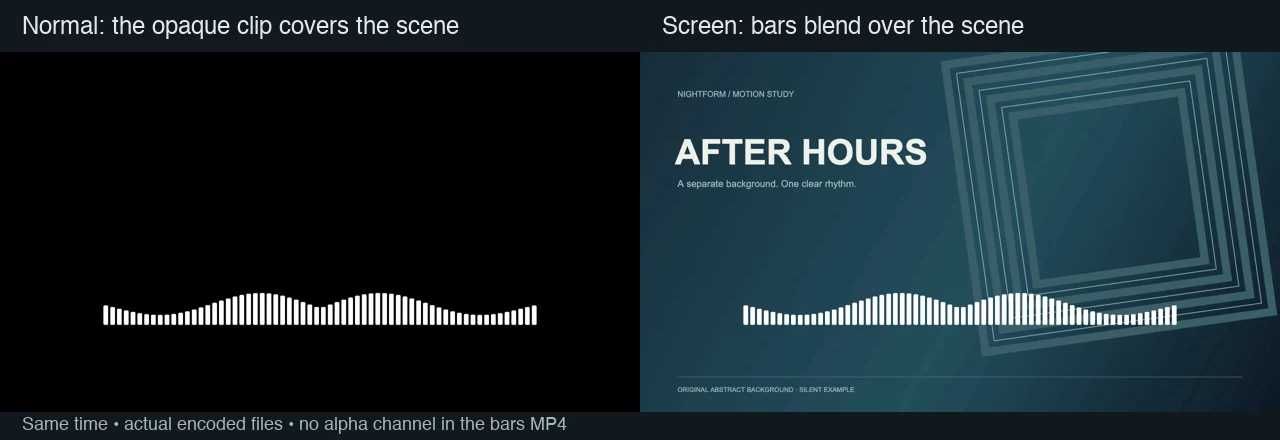
Left: the bar clip displayed normally. Right: the same timestamp composited with Screen. Changing the blend operation reveals the background; it does not add transparency to the source MP4.
4. Combine the clips with Screen
In a timeline editor, put the existing video on a lower video track and the bar clip directly above it. Align their music start points, select the upper clip, and change its blend mode to Screen. In Premiere, the control is under Effect Controls → Opacity → Blend Mode.
Keep the bar clip at full-frame size initially. If you resize it later, check the bar height and placement again. Put important titles above the visualizer layer when you want the text to remain unaffected by that layer's blending.
Screen brightens the underlying picture wherever the upper clip is brighter than black. White bars work well against a darker scene; they can disappear into a bright sky or white shirt. Reduce their footprint or choose a darker area of the footage when they compete with the subject.
Reproduce the composite with FFmpeg
The finished example above was created with this command. It requires an installed FFmpeg build with the libx264 encoder and familiarity with a terminal. Place your two clips in the same folder, name them background.mp4 and bars.mp4, then run:
ffmpeg -i background.mp4 -i bars.mp4 \
  -filter_complex "[0:v]fps=30,scale=1280:720,setsar=1,setpts=PTS-STARTPTS,format=gbrp[bg];[1:v]fps=30,scale=1280:720,setsar=1,setpts=PTS-STARTPTS,format=gbrp[bars];[bg][bars]blend=all_mode=screen:shortest=1,format=yuv420p[v]" \
  -map "[v]" -map "0:a?" -c:v libx264 -crf 18 -c:a aac \
  -shortest -movflags +faststart music-bar-overlay.mp4
This version makes both clips 1280 × 720 at 30 fps, resets their timestamps, blends in RGB, and writes an H.264 MP4. It assumes both clips already have the same aspect ratio and matching music start. Change both size/frame-rate settings for a different project; scaling a portrait video directly to these landscape dimensions would distort it.
The optional 0:a? mapping takes audio from the background file only, when present. It ignores any soundtrack in the bar export. If the background file is silent, the result is silent too. The demonstration tested that silent case; it does not demonstrate an audio mix or a full-song synchronization test.
The command stops at the shorter video input and uses -shortest for the output. It does not extend or loop a short overlay to fit a longer song.
5. Keep one soundtrack and verify timing
Your VisualizerWave export may already contain the music. If your edit also has that song, mute or remove the bar clip's audio. Playing both copies can make the mix louder or create a short echo when their timing differs.
Keep the authoritative soundtrack in the main edit. Align the bar clip against a clear musical event, then check another event later in the section. An offset at every point suggests a placement problem; growing drift suggests a speed, source-version or timing mismatch.
Export a short composite and check the saved file at normal viewing size. Look for readable bars, clean dark areas, clear titles, correct duration and the intended soundtrack. Recheck the ending so the visualizer does not freeze or vanish before the music finishes.
Why the overlay still looks wrong
| Symptom | Likely cause | First adjustment |
|---|---|---|
| A black rectangle covers the video | The upper clip still uses Normal blending | Choose Screen on the bar clip |
| The whole picture becomes lighter | The export contains gray, tint, grain or other nonblack pixels | Re-export with a clean pure-black background |
| Dark bars disappear | Screen is a brightening operation | Use bright bars; use a different compositing method for dark graphics |
| Bars vanish over highlights | White-on-white has little contrast | Move them to a darker area or adjust the composition |
| Bars no longer follow the music | Wrong trim, start point or changed audio speed | Align the correct source section or re-render |
Screen is a useful treatment for bright graphics. It is not a replacement for a true alpha channel when you need opaque dark shapes, precise semitransparent edges or complex artwork. A green-screen key is a separate process with its own edge and spill controls; this example does not require one.
If all you need is a finished visualizer with an image or video behind it, you can compose that background inside VisualizerWave. Use the separate-overlay method when you want to retain an existing edit and its titles, cuts and soundtrack.
VisualizerWave creates the reactive bar source with local media processing and rendering. The paid license is $19 once, with unlimited exports; external editing software has its own requirements.