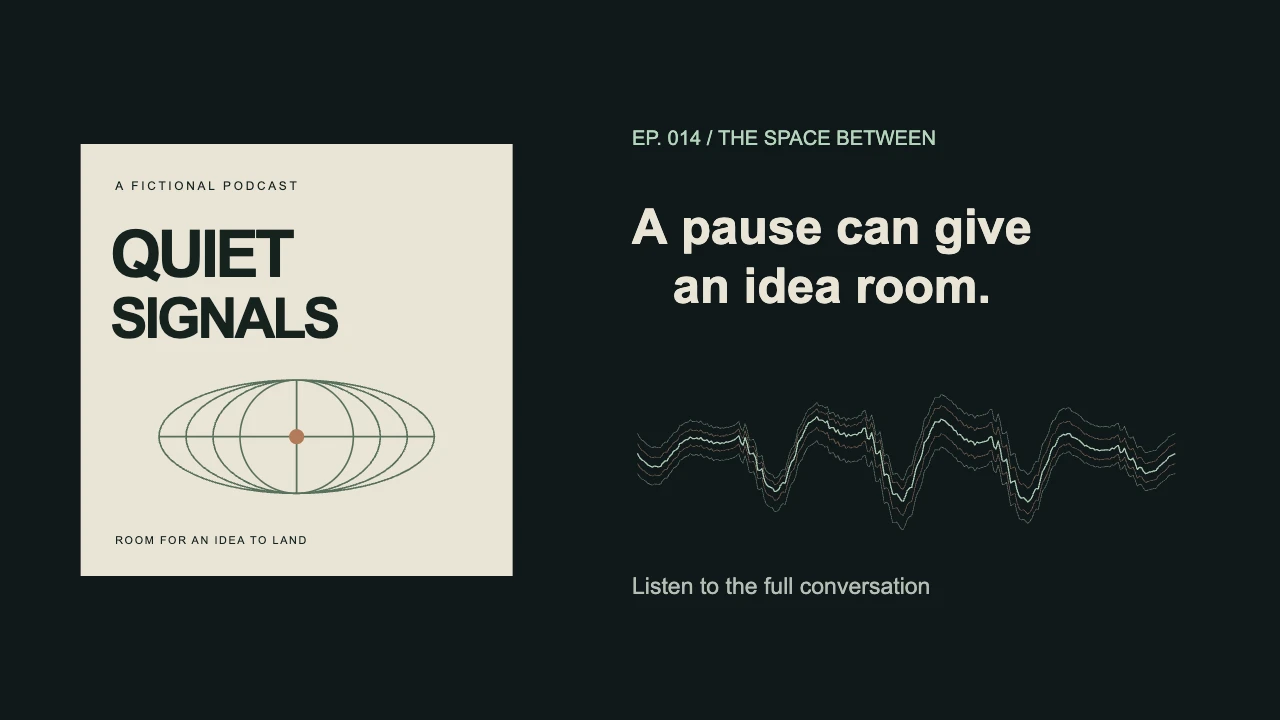
A podcast visualizer turns recorded speech into a video with audio-reactive graphics, cover art and episode information. To make one in VisualizerWave, import your prepared audio, choose a waveform design, add your artwork and text, then export the video. Preview both a spoken phrase and a pause before choosing how strongly the visual should move.
This kind of video is often called an audiogram. It gives an audio excerpt a visual format for sharing without requiring filmed footage of the conversation. A waveform shows the sound; captions convey the words. VisualizerWave's text layers let you write static labels, but they do not automatically transcribe the episode or generate timed subtitles.
The worked example below uses Waveform Ribbon, original fictional podcast artwork and a short prepared voice clip. For the general import-and-export workflow, see how to create an audio visualizer.
Prepare an excerpt that makes sense on its own
Choose a moment that communicates one useful idea. An answer that starts with “yes, exactly” may need the preceding question; a sentence cut before its conclusion can leave the viewer confused. Listen to the opening and ending together before building the design.
Prepare the audio in your usual editor if you need to combine speakers, remove a mistake, reduce noise or balance the recording. Import that finished mix into VisualizerWave. For an excerpt from a longer file, you can also select the export range yourself; the app does not choose the best quote for you.
Have these assets ready:
- The intended audio file, with the dialogue, music and transitions already mixed as you want them heard.
- Podcast cover art or a guest image that remains recognizable when reduced.
- The show name, episode identifier and a short, accurate headline.
- A clear next action, such as listening to the full episode.
Keep enough breathing room around the words to make the cut sound intentional. Silence can be part of a good excerpt, particularly for a reflective story or a carefully delivered answer.
Build the frame around the message
Choose the canvas shape before placing the artwork. Landscape suits the side-by-side example here. A vertical post usually needs a different arrangement, with the cover, headline and waveform stacked. The social video sizes tool helps compare the dimensions.
In the editor:
- Import the prepared audio and choose Waveform Ribbon. This design uses the actual mono waveform, presented as several flowing strands.
- Add the cover as an image/logo element. Keep its proportions and give it enough room that the show identity is recognizable. In our landscape example, the cover occupies the left side.
- Edit the text layers. Put the episode identifier above a short headline. Add another text element if you want a separate listening prompt. Write these labels yourself and check their spelling.
- Move and resize the ribbon. Place it in its own area beside or beneath the headline. Keep the strongest speech movement away from the artwork and lettering.
- Simplify the background and effects. A quiet, dark background works with this cream cover. We left scene effects, beat zoom and shake off so the voice-driven motion remains easy to follow.
The headline in our example, “A pause can give an idea room,” stays on screen throughout. It summarizes the clip; it is not a timed transcript of every spoken word. Avoid putting several competing quotes around the waveform.
Adjust the response to the voice
Use the actual controls for the chosen visualizer. Settings copied from a bar-spectrum tutorial may not apply to a waveform design. In particular, Waveform Ribbon does not use a bar count or a smoothing control to shape its signal.
These are the example's starting settings:
| Control | Worked example |
|---|---|
| Sensitivity mode | Standard |
| Sensitivity | 1.0 |
| Movement / Reactivity | 1.5 |
| Scale | 0.5 |
| Beat zoom and shake | Off |
The ribbon uses the full mix. If an intro sting or background music is present in the imported audio, it contributes to the waveform too. This is not speaker isolation, and the visual cannot identify who is talking.
Start with a clearly spoken phrase. Increase Movement or Sensitivity only if the signal is too restrained, then revisit the strongest word or laugh. Scale changes the size of the composition; it is useful when you need more clearance around text. The example values fit this prepared recording, rather than defining universal podcast settings.
If you prefer frequency bars, use the waveform-versus-spectrum guide to choose the right visual language. A more detailed spectrum can work, but it should still leave the headline and cover easy to read.
Check what happens during a pause
An audio visualizer for a podcast needs to work between phrases as well as during them. Here are two actual renders with the same design and settings:
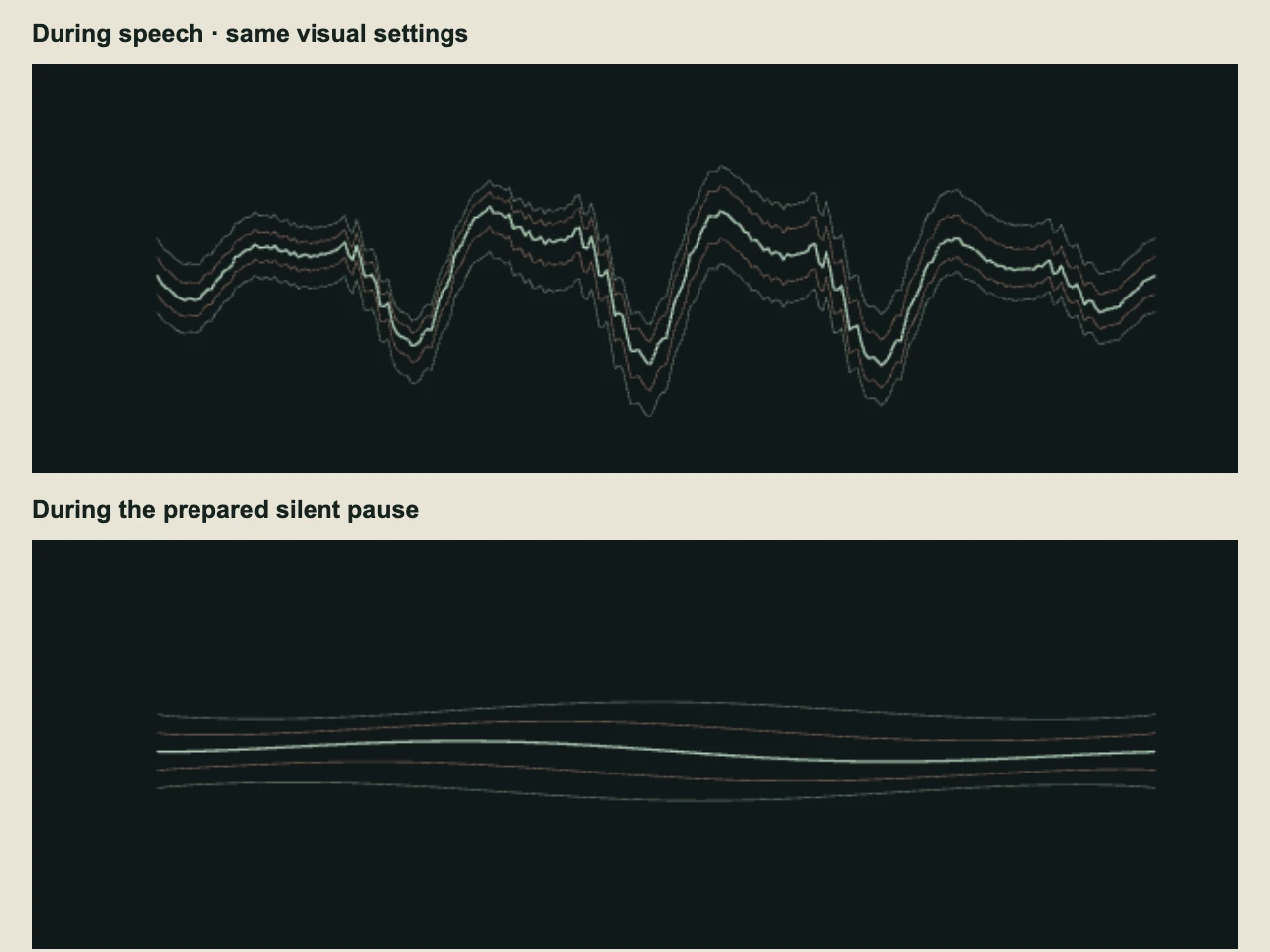
Top: during speech. Bottom: during the prepared pause. Both panels show equal crops of the same waveform area. The artwork and title stay fixed in the complete video.
For this demonstration, we wrote an original script and prepared a synthesized voice outside VisualizerWave, with a 1.5-second silent gap between two phrases. We then imported that audio into the rendering workflow. Voice generation is not part of the visualizer workflow shown here.
During the pause, the captured audio waveform had zero amplitude. The larger voice-driven ripples disappeared, but Waveform Ribbon kept its gentle decorative drift. A small amount of remaining motion in this design therefore does not mean someone is still speaking.
Your own recording may contain room tone, breaths or background music rather than digital silence. Check what the source actually contains before increasing sensitivity to force more movement. A quiet interval can look calm without needing the same visual energy as a spoken sentence.
Keep the clip understandable with sound off
A moving waveform signals that audio is present, but it cannot communicate the sentence to someone watching on mute. A short static headline provides context; accurate, timed captions provide the dialogue.
If captions are required, add and review them in a separate captioning editor or in the publishing platform's caption workflow. Check names, specialist terms and timing against the final audio. Leave space for those captions when positioning your artwork and waveform, then review the completed version with the platform's other on-screen controls visible.
This distinction matters when choosing a podcast audio visualizer: decide whether you need a designed audio-reactive video, transcription and subtitle editing, or both. This tutorial covers the designed video.
Export a test before the full episode
Our original example exported as a 1280 × 720 MP4 at 30 fps, with its voice soundtrack and pause intact. We checked decoded frames during speech, the pause and the following phrase. The test establishes that short export in the observed browser, rather than proving every device can render a full-length episode at any resolution.
Run the compatibility check, then export a representative section. Watch the downloaded video with sound and check the phrase boundaries, soundtrack, waveform response and title clearance. Also view it at phone size. If the headline becomes hard to read, shorten it or enlarge it before adding more animation.
For a long episode, test your intended format and resolution before committing to the complete render. Keep the browser and computer available for the export. Save a portable .visualizerwave project if you want to reuse the artwork, colors and layout for another episode.
Adapt the layout for other spoken audio
The same basic workflow can serve a vocal demo, poem, audiobook excerpt or guided meditation. The useful adjustments come from the content:
- A vocal or spoken-word performance: keep the performer and piece title clear, and preserve the pauses that shape the delivery.
- An audiobook excerpt: show the book and narrator details, and choose a passage that works without several minutes of missing context.
- A meditation preview: allow longer quiet intervals and restrained movement; keep instructions or a listening prompt readable.
Replace the audio and labels, then check response and framing again. A consistent design can connect a series while leaving each recording's pacing intact. For broader composition choices, see the visualizer animation guide.
VisualizerWave is $19 one-time with unlimited exports. See the lifetime offer to create a podcast visualizer from your prepared audio and artwork.