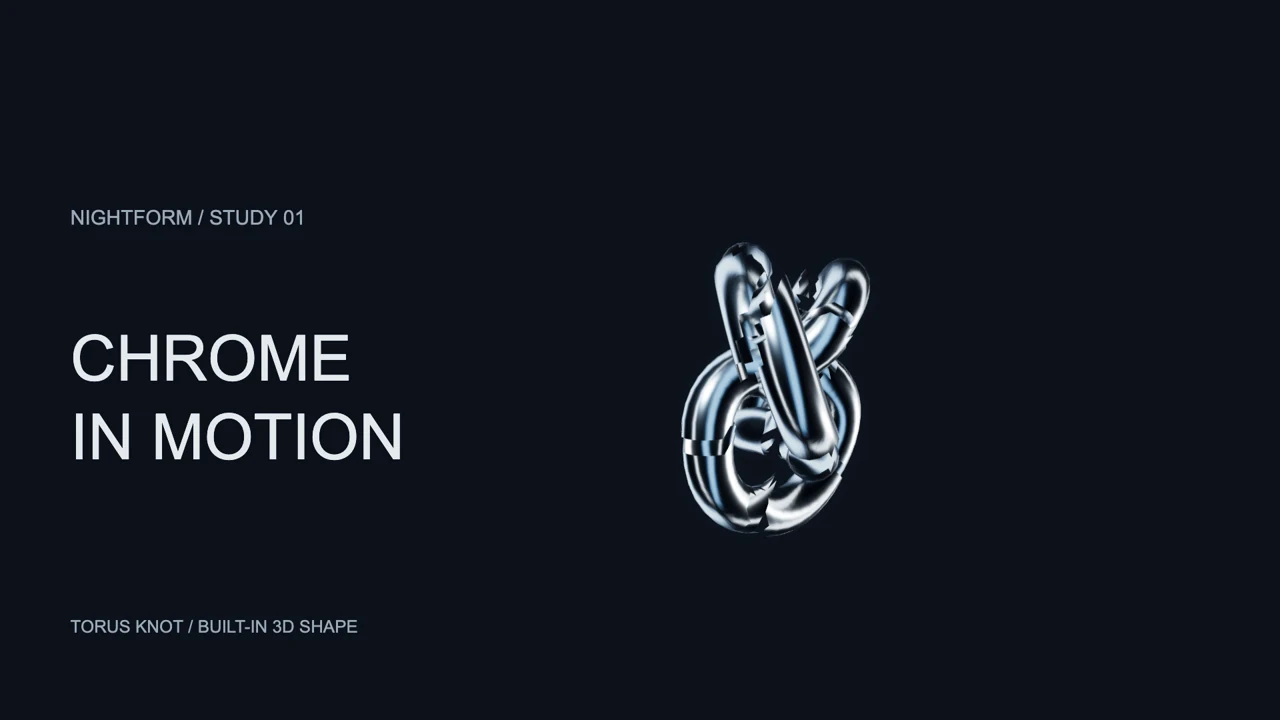
To make a 3D audio visualizer in VisualizerWave, import your recording, choose the Chrome template, select a built-in 3D shape, then tune its bass response and rotation before exporting a music video. Leave a clear area for the artist and track title, and check the composition during a strong passage.
This guide uses a chrome torus knot as the main subject. The example below is a silent animation: it demonstrates the actual renderer with illustrative response values, rather than playing a demonstration soundtrack or claiming to analyze a particular song. In your project, your imported recording drives the response.
Actual VisualizerWave renderer and exporter, 1920 × 1080 at 30 fps, six seconds. The example contains no audio track. It illustrates rotation and separation; it is not a seamless-loop or full-song export test.
What makes this a 3D visualizer?
The Chrome layer draws a three-dimensional geometric object with perspective, reflective surfaces and rotation. Audio response changes its movement and the separation of its parts. It is a different design from placing a glow around a flat waveform.
| Look | What creates its shape? | Useful composition |
|---|---|---|
| Chrome 3D shape | A rotating geometric mesh with reflective surfaces | A sculpture as the main subject |
| Radial spectrum | Frequency activity arranged around a center | A moving frame around cover art |
| Waveform Ribbon | The audio signal, combined with decorative drift | A continuous line beneath a title |
| Stereo Scope | Samples from the left and right channels | A channel-driven trace |
“3D” here describes the picture. It does not turn your song into spatial or binaural audio. For the differences between a waveform, spectrum and scope, see the audio waveform visualizer comparison.
Choose a built-in shape
The 3D shape control offers four designs:
- Chrome shards: an irregular, pointed sculpture with a busy outline.
- Torus knot: an interwoven loop with a recognizable central form.
- Liquid orb: a rounded, uneven surface with flowing reflections.
- Crystal: a faceted geometric form with broad flat faces.
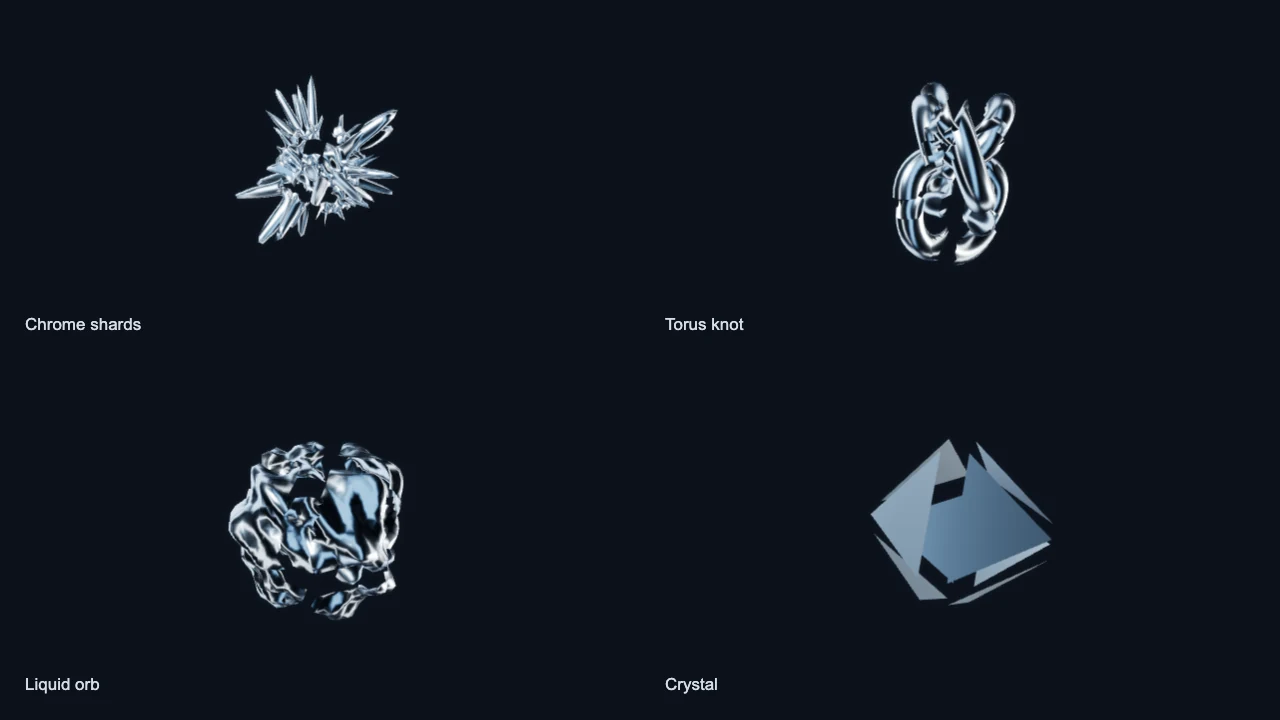
Product-rendered shape examples at the same rotation time and illustrative response. Surface roughness is 0.2 for the first three and 0.5 for Crystal. Flat reflective faces can look much darker at some angles; shape, rotation and roughness all affect the reflections.
Choose the silhouette before tuning the response. A spiky shape can fill a frame quickly; a knot or orb may leave a clearer area beside the title. The name Chrome refers to this template and material treatment, independently of the Chrome web browser.
1. Load your track and start with Chrome
Import the finished audio file you intend to publish. Choose the canvas shape first: landscape for a regular YouTube release, or a separate vertical composition for a short social post. The music visualizer setup guide covers the general media and export workflow.
Choose Chrome in Templates, then select its Chrome sculpture layer. Use 3D shape to switch the geometry and Chrome tint to bring its reflections into your release palette.
Chrome includes decorative backdrop layers. Keep the ones that support the composition and hide any that compete with the sculpture or text. A simple background makes changes in the reflective surface easier to judge.
You can also add a 3D shape element to an existing design. The workflow shown here uses built-in geometry; it does not require a custom model, shader code or a camera animation.
2. Tune bass response and separation separately
Bass response controls how strongly the shape responds. Split on bass controls how far its parts separate. These are related controls, but they solve different problems.
Start with a strong section of your recording. If the sculpture flies apart too far, reduce Split on bass before making the entire response weaker. If it barely changes at all, compare a quiet passage and a strong one before increasing Bass response.
The sculpture can rotate even when the bass response is quiet. Rotation speed controls that time-based movement. Setting Bass response to zero does not necessarily freeze the object; reduce Rotation speed as well when you want it still.
These settings describe the silent study:
| Control | Example value | What it changes |
|---|---|---|
| 3D shape | Torus knot | The underlying geometry |
| Chrome tint | #CBD9E4 | The material color |
| Bass response | 1.4 | Strength of the response |
| Split on bass | 0.65 | Separation of the parts |
| Bloom on bass | 0.25 | Bass-linked light around the shape |
| Rotation speed | 0.3 | Continuous rotation |
| Surface roughness | 0.2 | How sharp or spread out reflections appear |
| Shape size | 0.82 | The space used by the object |
| Offset X / Offset Y | 100 / 15 | Placement in this landscape frame |
Treat the values as a description of this composition. The animation uses a controlled numerical response curve, so these numbers are not a preset guaranteed to react the same way to your master. Check your own recording instead of matching the example's silhouette.
3. Use reflections without losing the form
Start with a restrained tint and moderate roughness. Very sharp reflections can create strong contrast, but broad flat faces may become dark as the object turns. Increase Surface roughness when you want the reflections to spread more softly across the surface.
Bloom on bass adds light around the shape as its response increases. It is separate from splitting the geometry. Reduce it if the brightest moments blur the outline or make nearby type harder to read.
Wireframe provides another treatment. Compare it with the solid surface at normal viewing size: fine edges that look clear on a large canvas can be difficult to read in a phone feed.
Make these decisions before adding more scene effects. A clear form and a deliberate title usually do more for the composition than several overlapping glow or shake effects.
4. Give the title its own space
The example places the sculpture to the right and the title to the left. The first version used type that was too large and crossed the object. Reducing the type size and moving it left gave the title and reflections separate areas.
Adjust Shape size, Offset X and Offset Y, then preview a strong response and several rotation angles. Keeping the object inside the frame does not ensure it stays clear of other layers. Its brightest reflections and separated parts need room too.
For a vertical version, rebuild the hierarchy around the narrower frame. Put the title above or below the sculpture, then check it again during strong motion. The social video sizes tool helps choose a canvas; it cannot decide where the important text should sit.
5. Check a short export before the whole release
Open Export video, confirm the shape, resolution, frame rate and available format, then use Export 5-second test. Watch the downloaded file and check:
- The title remains clear across different rotation angles.
- Separated parts and bloom leave enough room around the text.
- Reflections stay readable at the intended viewing size.
- Your own soundtrack has the expected start, ending and timing.
The silent demonstration was encoded and decoded as a six-second 1080p, 30 fps MP4 through the actual product export pipeline. That confirms this local example, not every browser, codec or full-length song. A higher-resolution frame also uses more device resources.
Run the compatibility check before a demanding render. MP4, WebM, larger resolutions and export speed depend on the browser, device and scene. Save a portable .visualizerwave project once the composition works, then replace the media and recheck the response for the next release.
Built-in shapes or a full 3D scene?
Use this approach when a reflective, audio-responsive sculpture is enough for the video. It gives you direct shape, material and movement controls inside the release-video workflow.
If your project depends on imported models, custom environments or a carefully keyframed camera journey, evaluate a full 3D scene editor. The Banger.Show comparison explains that broader workflow distinction. A 3D audio visualiser can mean either a ready-made geometric look or a custom scene; choose by the result you need.
VisualizerWave processes media and renders video on your computer. Account and purchase services are separate from that local processing. The paid license is $19 once, with unlimited exports.