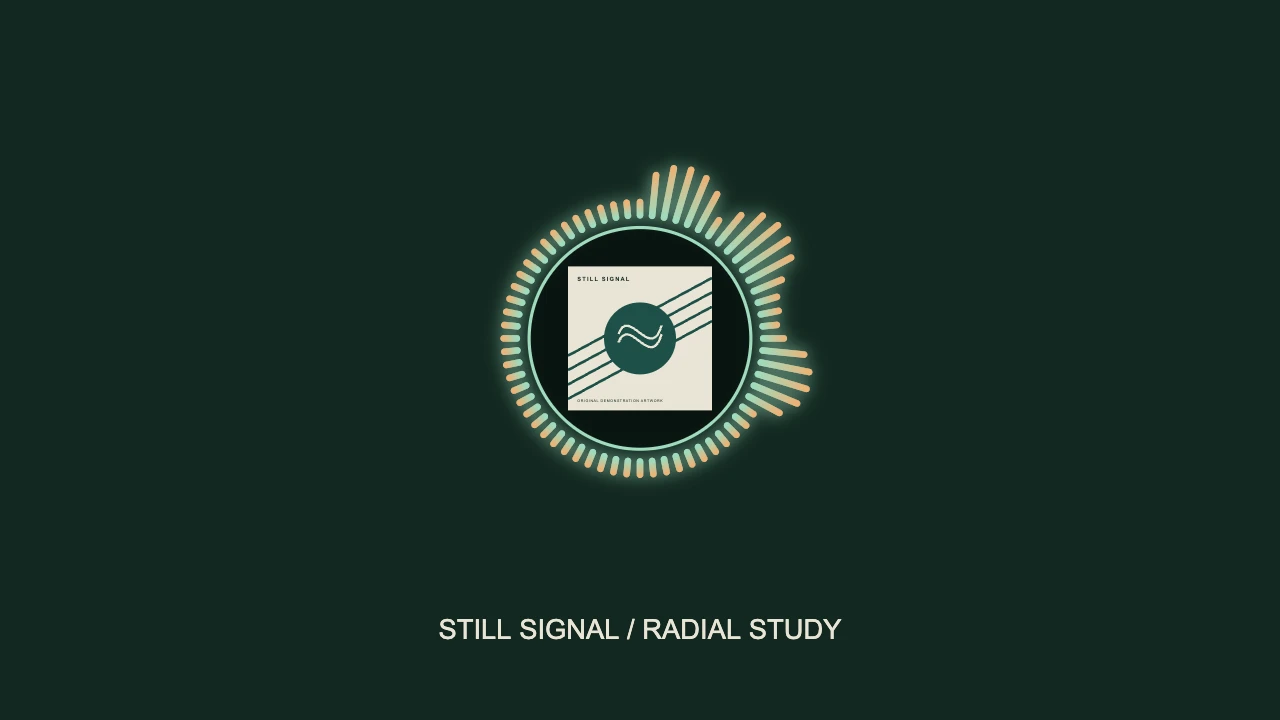
To make a circle audio visualizer, choose a radial spectrum, place your cover art or logo in its center, then size the artwork and ring separately. Preview both a quiet passage and a loud section before exporting: a layout that works in the intro can collide with the title when the bars grow.
In VisualizerWave, Radial is the visualizer style. The ring reacts to your imported audio; the center image is a separate layer. You can build this composition without drawing a circular path or recording your screen.
This guide concentrates on the ring, artwork and spacing. For the complete upload-to-video workflow, start with how to make a music visualizer.
Decide what belongs inside the circle
A circular spectrum wraps frequency bars around a center point. It leaves a space for a logo, portrait or cover image while the surrounding motion shows the track's changing energy. It is different from a waveform of the entire song; the waveform and spectrum guide explains that distinction.
Choose a clear center image before adjusting effects. A small logo can remain recognizable inside a ring. A detailed album cover may need more room, especially if its own lettering must be readable. In that case, consider a cover-art-focused layout instead of shrinking the artwork until its details disappear.
Prepare the final audio file, the image and the artist/track text. Use artwork with enough resolution for the intended output, rather than enlarging a thumbnail.
Build the ring and center image as separate layers
- Load the audio and choose the canvas. Use a landscape composition for a regular YouTube upload, or compose a separate vertical version for a Reel or Short. The video-size tool helps compare the shapes.
- Choose Radial on the visualizer layer. Radial Vinyl is one template starting point. For a custom composition, add a visualizer layer and set its Style to Radial. Remove or hide a second visualizer if you only want one ring.
- Add the center artwork as a Logo layer. The name describes an independently positioned image layer; it can hold your cover artwork too. Upload the image, choose the center position and bring its Opacity to full if you want it fully visible.
- Align the centers. Place the image over the ring's opening. If you move the ring upward to leave room for a title, move the image with it. Check both layers rather than assuming that moving one moves the other.
- Adjust each Scale separately. The visualizer's Scale changes the whole radial design, including its opening and outer reach. The image layer's Scale changes the artwork. There is no separate ring-radius control in this workflow.
Keep a square cover intact if that is part of its identity. If you want a circular image instead, prepare a circle-cropped image with a transparent background before importing it. Adding an image to the Logo layer does not automatically crop it into a circle.
Fit the corners, not just the width
A square can look narrow enough for the opening while its corners still cut across the circle. That is a geometry problem, not an audio-response problem.
For a square to fit entirely inside a circular opening, its diagonal must fit inside the opening's diameter. As a useful starting rule, the square's side should be less than about 70% of that diameter, with extra space for a visible gap. A round-cropped image can fill more of the opening because it has no protruding corners.
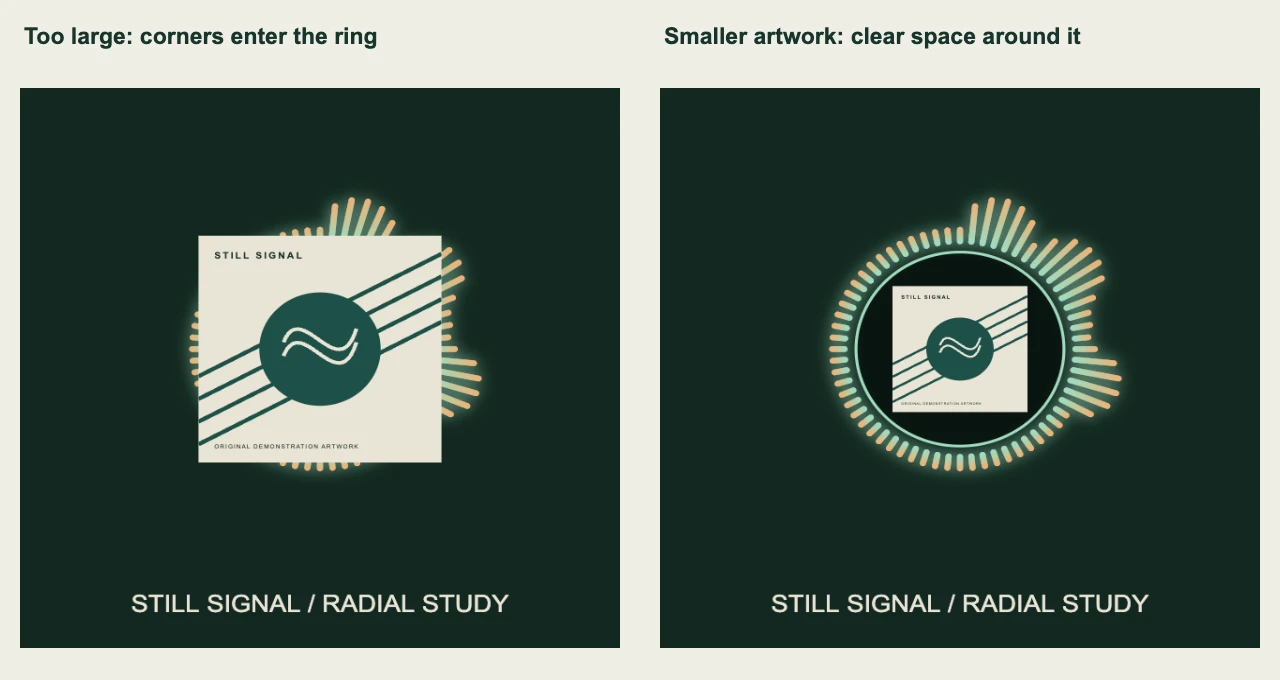
The same custom radial composition with two image sizes. Only the artwork scale changes between these examples.
In our 1280 × 720 worked example, the center image is about 144 pixels square inside an opening roughly 222 pixels across. Its diagonal is about 204 pixels, leaving some breathing room. These are measurements of this example, not universal dimensions for every template.
If the ring is hidden, first reduce the image. Enlarging the whole visualizer can also help, but it pushes the outside bars toward the frame edges. Check the loud section again after either change.
Tune movement after the layout works
Play a busy section of the track while adjusting the response. Start with the ring alone, then add effects once its movement is readable.
| Control | What to watch | Useful adjustment |
|---|---|---|
| Reactivity / Movement | Bars become a constant oversized shape | Lower the response until individual changes are visible |
| Smoothing | The ring chatters or settles too abruptly | Increase smoothing for a calmer response |
| Low Cut / High Cut | The wrong part of the mix dominates | Narrow the frequency range, then compare several sections |
| Visualizer Scale | Outer bars approach the frame or title | Reduce the whole ring or move the title farther away |
For a bass-led track, try emphasizing the lower part of the spectrum. For vocals or brighter material, listen and watch before narrowing the range too far: removing too much frequency content can leave the ring looking inactive.
Our example uses 64 bars, smoothing 0.75, reactivity 0.85 and visualizer scale 1.10. It is a custom composition rendered with original artwork and a four-second synthesized audio signal, including a quieter opening and a stronger section. Those settings demonstrate the workflow; they are not a preset recommendation for every mastered song. Existing templates may start with different proportions, so adjust by the preview rather than copying the image-scale number blindly.
For more on frequency response, smoothing and restrained effects, use the visualizer animation design guide.
Leave room for the title and the loudest bars
Put the artist and track name outside the ring's busiest area. A title below the circle is often easier to read than lettering across its center. If the artwork already contains the title, decide whether another title layer adds useful information.
Check the composition at a small viewing size. If the ring is clear but the artwork's lettering is unreadable, enlarge or simplify the artwork presentation. Adding more glow will not recover small text.
When making a vertical version, revisit the ring size, image size and title placement together. A centered landscape layout is not automatically a good phone layout. Keep essential information away from likely app overlays and inspect the upload draft on the destination platform.
Export a short test before the whole track
Render a representative section that includes a clear audio attack and a quieter moment. Watch the downloaded file with sound and check:
- The artwork stays clear of the ring, including its corners.
- The largest bars remain inside the frame and away from the title.
- The movement feels appropriate during both quiet and loud passages.
- The soundtrack is the intended version of the track.
- The exported layout is readable at the size people will actually watch.
MP4, WebM, resolution and export performance depend on the browser and device. Use the compatibility checker, then test your intended settings. A successful short export is useful evidence for that setup, not a guarantee about every longer or higher-resolution render.
Save a portable .visualizerwave project if you want to reuse the design. For the next release, replace the audio and artwork, update the text, and check the fit again—especially if the new image has different dimensions.
Quick answers
Why does my cover hide the circle?
The center image is probably too large or misaligned. Reduce its scale, center it over the opening and check the square's corners. If you enlarge the visualizer instead, recheck the outer bars and title.
Can I make an NCS-style visualizer around my own logo?
If you mean a reactive ring surrounding a center logo, that is the composition described here. Use your own branding and artwork, choose Radial, and tune the response for your track. A circular visualizer does not require a particular channel's logo or template.
Does the ring show which notes are being played?
A radial spectrum responds to frequency energy; it does not identify the original note performance. If you want individual notes to drive the visuals, use matching MIDI with the MIDI visualizer workflow.
VisualizerWave is $19 one-time with unlimited exports. See the lifetime offer, then build a radial composition around your own release.