A MIDI visualizer turns note events into a picture: which notes are active, when they begin, how long they last, and how they overlap. That makes it useful for showing a chord progression, presenting a melody sample, or giving a performance a visual identity beyond a waveform.
You might know the familiar falling-note piano video. That is one approach, not the only one. VisualizerWave combines your rendered audio with your MIDI performance, so note-driven keyboards, botanical forms, or abstract graphics can move alongside audio-reactive effects.
This guide explains that file-based video workflow, from exporting the performance to choosing a design and checking the result.
MIDI visualization is different from audio visualization
An audio visualizer reacts to the recording's waveform or frequency content. It can show the energy of a kick, the brightness of a hi-hat, or the shape of a complete mix. It does not necessarily know which musical notes created those sounds.
MIDI contains performance instructions rather than the sound itself. A MIDI file can describe notes and their timing, but it does not contain your piano recording, synth patch, or effects chain. That is why the same performance can sound different when played by different instruments.
In VisualizerWave, the two files have separate jobs:
| Input | Job in the video |
|---|---|
| Rendered audio | The soundtrack, including the instruments and processing you chose |
| Matching MIDI | Note timing and pitch for the MIDI-driven parts of the design |
| Template | The visual treatment combining note-driven and audio-reactive elements |
The result does not need to look like a piano lesson. A keyboard is useful when you want the playing to be obvious; an abstract design may better suit the mood of a release.
1. Export audio and MIDI from the same session
Render the audio you want people to hear. Then export the matching MIDI using the same arrangement origin. Keep an intentional rest before the first note if that rest also exists in the audio.
If you are using Ableton Live, select the MIDI clip and use Export MIDI Clip. For a part spread across several clips, consolidate the intended region before exporting it as one clip. Export the corresponding audio selection separately so the video retains your instrument sound.
Give the files recognizable names, such as night-glass-audio.wav and night-glass-keys.mid. For several parts, names like keys, bass, and lead make it easier to identify which notes should appear.
Already working from a finished recording with no MIDI? You can still make an audio-reactive sample video. VisualizerWave does not transcribe WAV or MP3 files into a MIDI performance.
2. Choose what the notes should communicate
A useful MIDI visualiser makes the performance easier to follow, not just busier. Pick a look for the kind of musical information you want the viewer to notice:
| Template | Useful when you want… | Visual direction |
|---|---|---|
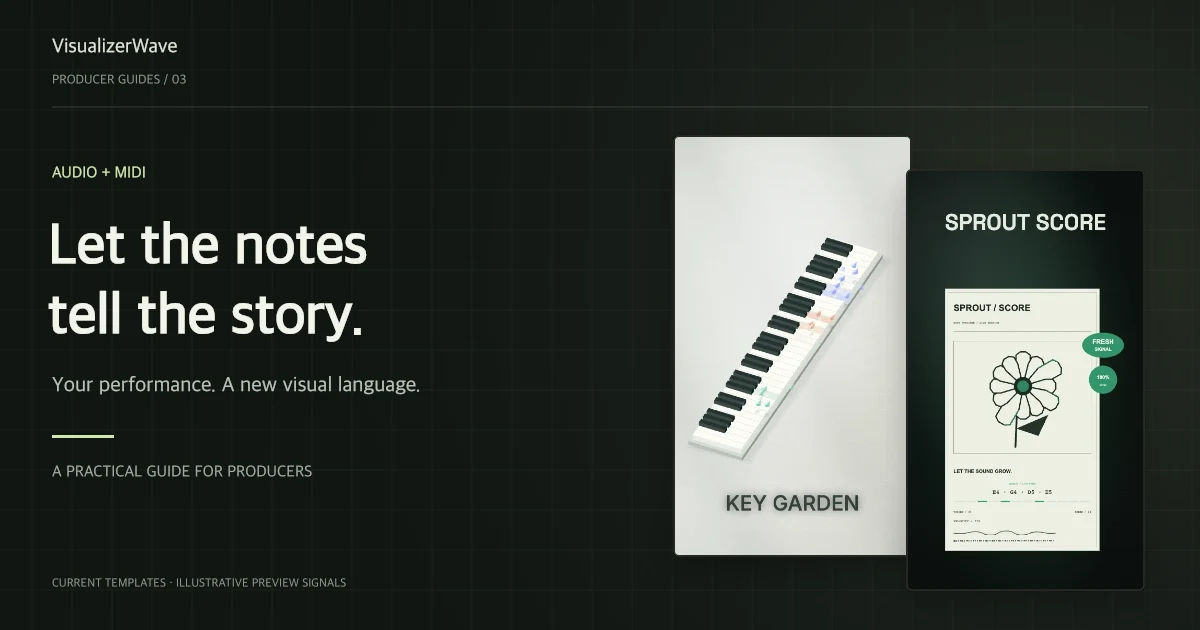
| Key Garden | A clear connection to keyboard playing | A wide keyboard with note-driven paper forms |
| Paper Score | A graphic interpretation of pitch | Sculptural, paper-like note motion rather than printable notation |
| Sprout Score | A softer or organic sample presentation | Notes activating a botanical composition |
| Violet Weave | Interconnected melodic or chord movement | A luminous, abstract network |
| Echo Relay | A compact technical treatment | Note activity within a modular instrument-like layout |
| Capra Scan / Ritual Relay | A more experimental release identity | Scan graphics or a reactive circular seal |
Key Garden starts with at least 61 keys and expands to cover a wider MIDI range when necessary. That matters for samples with bass notes and high voicings in the same file: you should not need to sacrifice part of the performance to fit a small keyboard.
Sprout Score, Echo Relay, Capra Scan, Violet Weave, and Ritual Relay also offer Live note names. These labels show active pitches with octaves, such as C4 or D♯4, rather than guessing a chord name. Use them when they help explain the performance; turn them off for a cleaner artwork-led presentation.
3. Import the performance and check its parts
Load the audio and add your .mid or .midi file in the editor's media controls. VisualizerWave supports up to four MIDI files; a file can contain multiple musical parts. Give those parts useful names and use the available visibility and color controls to keep a busy arrangement understandable.
Showing only the keys can be helpful for a chord sample, even if the soundtrack also includes drums and bass. Remember that hiding a MIDI part changes the visuals, not the uploaded mix. To change what listeners hear, render a different audio mix in your DAW.
Use Standard MIDI format 0 or 1 with PPQ timing. Format 2 and SMPTE-timed files are not supported by this importer. If a file is rejected, export a compatible Standard MIDI file from your DAW rather than renaming the extension.
4. Check timing before adding more detail
Watch the first distinct note, then a phrase later in the recording. Does the key, petal, or graphic activate at the same moment as the sound?
Open Timing & pattern repeat if it does not:
- Offset (seconds): move the whole MIDI performance later with a positive value, or earlier with a negative value.
- Playback: keep Play once for a complete arrangement; use Repeat pattern only when the notes should cycle.
- BPM override: use it deliberately when the MIDI tempo is wrong. It replaces the file's tempo changes with one constant BPM.
Do not fix an alignment problem by changing the displayed BPM/key label. Those fields are presentation, not timing controls. For examples and a symptom-by-symptom checklist, follow how to sync MIDI and audio.
5. Frame it for the viewer, then export
Use 9:16 for a phone-first sample preview and 16:9 for a landscape performance. Square and 4:5 layouts are available too. Keep the title and BPM/key information away from the very top and other likely interface overlays, then inspect the actual publishing draft on your phone.
Run a short export before a full video. Check chords, rests, low/high notes, and the final release of the pattern. MP4, WebM, 4K, and export performance depend on the browser and device; desktop Chrome or Edge is the recommended starting point. The browser compatibility test checks available export paths.
Save a portable .visualizerwave project if you want to return to the layout with its media and settings. Local browser recovery is useful, but a saved project is the safer way to keep a copy outside that browser.
MIDI visualizer questions
Can I use MIDI without recording a screen or filming my hands?
Yes. This workflow uses exported MIDI and audio files. The video comes from the visualizer, not a camera recording or DAW screen capture.
Does VisualizerWave play my MIDI through my original instrument?
No. Render that instrument to audio in your DAW. The MIDI drives the visuals; the audio file carries the sound.
Is this a live MIDI keyboard visualizer?
This workflow is for imported files and exported videos, not live hardware input or a DAW plugin. Use it for prepared performances, sample demos, and release content.
Can I show chords and several instruments?
Yes. MIDI parts can contain overlapping notes, and you can import multiple files within the four-file limit. Simplify the visible parts when the full arrangement makes the design hard to follow.
Is a MIDI visualizer the same as sheet music?
No. These templates are visual interpretations of a performance. Paper Score is not a notation transcriber or a printable score generator.
VisualizerWave is $19 paid once, with unlimited exports and future updates included. See the Audio + MIDI looks and lifetime offer, then build a video around your own performance.