A loop visualizer can mean two things: a repeating animation used behind a song, or a video that presents a short music loop. This guide focuses on the second job: turning a drum, melody, or chord loop into a clear, audio-reactive video for listeners, collaborators, or sample-pack previews.
The key is to treat the audio repeat, the MIDI repeat, and the visual repeat as separate decisions. A video can have perfectly timed notes and still click at the audio boundary. A clean audio loop can still have an obvious jump in the animation.
First, decide what should repeat
For a quick social preview, you may simply want a finished video of one or two repetitions. For a longer demo, you may want the same four-bar idea to continue under a longer arrangement. For a seamless background, the last visual frame needs to connect convincingly to the first.
Those are not interchangeable goals. In VisualizerWave:
| Control or file | What it changes | What it does not do |
|---|---|---|
| Your rendered audio | The actual soundtrack and its duration | Automatically become longer when MIDI repeats |
| MIDI Repeat pattern | Repeats the note performance | Duplicate the sound of the sample |
| Editor loop playback | Replays the preview while you work | Extend the exported soundtrack |
| A looping video background | Repeats that background clip | Guarantee that every visual effect has a seamless boundary |
If you want a 30-second soundtrack, prepare a 30-second audio arrangement. A MIDI repeat setting alone will not produce the missing audio.
Work out the loop length before trimming
For a fixed tempo in 4/4, the duration is:
Seconds = bars × 4 × 60 ÷ BPM
Here are useful reference points:
| Tempo | 2 bars | 4 bars | 8 bars |
|---|---|---|---|
| 80 BPM | 6 seconds | 12 seconds | 24 seconds |
| 90 BPM | 5.333… seconds | 10.666… seconds | 21.333… seconds |
| 120 BPM | 4 seconds | 8 seconds | 16 seconds |
Notice that four bars at 90 BPM do not end on a whole second. Trimming that loop to 10 or 11 seconds changes the boundary. Work from musical bar positions in your DAW, or use the bars-to-seconds calculator for another tempo or time signature. Tempo-changing arrangements need their actual timeline, not one average BPM.
1. Render a musical loop, not an accidental fragment
Before choosing a loop visualiser, select the intended bars in your DAW. Check whether the clip includes silence before the first note and whether reverb or delay crosses the end.
For a loop meant to repeat, listen across the boundary several times. Cutting a tail short can sound abrupt; appending the full tail can make the loop longer than its musical period. Use your DAW's loop-rendering or tail-management workflow to make that choice deliberately. Ableton Live's Render as Loop, for example, can carry effect tails across the boundary while retaining the selected render length.
For a one-shot demonstration, letting the final tail ring out may be preferable. Label that as a preview rather than assuming it is the exact loop file a producer should drag into a session.
2. Build the video around one recognizable element
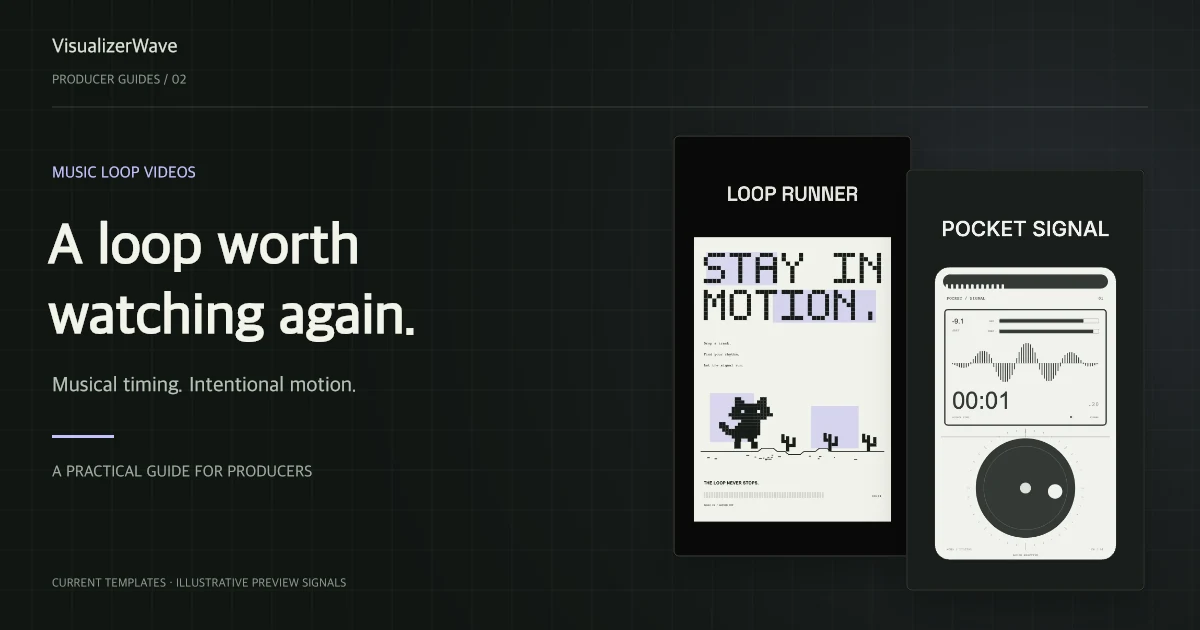
Upload the rendered audio and choose a template. Loop Runner offers a pixel-art direction, while Pocket Signal and Signal Archive give short patterns a more technical presentation. Their built-in compositions can work without a cover image.
Keep the loop name, producer identity, and any useful BPM/key information readable. A music loop may be heard several times before the viewer decides to save it, so constant shaking, flashing, or large text changes can become tiring.
For a drum loop, strong frequency movement may tell the whole story. For a melody or chords, a matching MIDI file can show how the phrase is played. Start with the sample visualizer guide if you are still deciding which treatment fits the material.
3. Add MIDI only when it belongs to the audio
Export the MIDI and audio from the same musical starting point. Choose an Audio + MIDI template such as Key Garden, Echo Relay, or Sprout Score.
For a complete rendered performance, leave MIDI Playback on Play once. If a short MIDI pattern should repeat beneath a longer audio arrangement, open Timing & pattern repeat, choose Repeat pattern, and check Repeat length (seconds).
A blank repeat length uses the file's duration, including trailing rests. If your four-bar, 80 BPM pattern should return every 12 seconds but its MIDI file ends after an extra silent bar, set the musical repeat length deliberately. Do not shorten it just to remove an intentional rest inside the pattern.
MIDI timing that is right on the first repetition but wrong later deserves a timing check. Use the MIDI/audio sync walkthrough to distinguish an offset from the wrong repeat period or tempo.
4. Choose the canvas for the destination
Use 9:16 for a vertical social video, 16:9 for a landscape demonstration, or 1:1 / 4:5 for a feed composition. Do not squeeze a landscape layout into a portrait frame and expect the title to remain readable.
Keep important text away from the outer edges and phone camera area. Review the draft in the app where you will publish it, because account controls and captions can cover different parts of the image.
The social video size guide helps with the canvas choice. It is not a guarantee that every platform accepts every duration or export setting.
5. Check the video boundary, not just the sound
An audio-reactive scene is not automatically a seamless animation. Particles, drifting textures, camera motion, and time-driven details can be in different states at the two ends of the file.
Export a short test and replay it from the end to the beginning. Check three things separately:
- Audio: no unwanted gap, click, cut-off tail, or extra silence.
- Notes: the next MIDI cycle begins at the right musical moment.
- Image: the restart feels acceptable at normal viewing speed.
If the visual jump is distracting, choose a calmer design or make the restart an intentional part of the presentation. Do not describe a clip as seamless merely because the audio length equals an exact number of bars.
Loop visualizer questions
Can I make a loop video without a background image?
Yes. Templates with their own graphic backgrounds are useful for loop previews. Your audio drives the reaction; cover artwork is optional for those designs.
Does changing the BPM label change the loop length?
No. The sample-information label is visual information. It does not time-stretch the audio. A MIDI BPM override is a separate control and affects MIDI timing, not the recording.
Can I export a longer video from a short audio loop?
Arrange or repeat the audio to the desired length in your DAW first. Preview looping and MIDI pattern repeats do not automatically extend the audio export.
Do I need 4K for a loop preview?
Not necessarily. Start with a clean 1080p layout and check the result on a phone. Higher-resolution exports depend on browser/device support; the compatibility test shows the available export paths.
VisualizerWave is $19 one-time with unlimited exports. Explore the lifetime offer when you are ready to give your next loop a visual identity.