You have a piano sample, a drum break, or a folder of melodies ready to share. A screen recording of your DAW gets the sound across, but tiny plugin windows rarely make a convincing release video. A sample visualizer gives the music its own presentation: movement that follows the audio, readable sample information, and a layout made for the platform where you will post it.
This guide is about visualizing music samples, rather than organizing a sample library. The useful starting point is deciding whether viewers should see the sound's energy or the notes behind it.
Choose the right kind of sample video
There are two different workflows in VisualizerWave:
| Your material | What to use | What viewers see |
|---|---|---|
| A WAV or MP3 sample, with no MIDI | An audio-reactive template | Waveforms, frequency movement, and artwork responding to the recording |
| A melodic sample plus its matching MIDI | An Audio + MIDI template | Note-driven motion alongside audio-reactive effects |
| A finished beat built from several samples | A release or beat-video layout | The complete track's energy, title, and producer identity |
An audio file alone does not tell the app which piano keys were played. If you want that connection, export the MIDI from the session that made the sample. MIDI supplies performance data; the rendered audio supplies the sound, including your instruments and effects.
For a complete beat rather than a sample preview, use the type beat video workflow.
1. Prepare the version listeners should hear
Render the sample from your DAW before opening the visualizer. Use the actual patch, processing, and mix you want to promote. Listen to the beginning and ending: an accidental count-in or chopped-off reverb tail is more distracting than a simple visual.
For a sample pack, decide what each video demonstrates. A melody loop, the same loop with drums, and a full arrangement are different promises. Label them clearly so a buyer understands which sound belongs to the pack.
If the clip needs to repeat cleanly, prepare a musical loop rather than trimming at an arbitrary second. The loop visualizer guide covers bar lengths, effect tails, and the difference between repeating audio and repeating MIDI.
Only publish audio and artwork you have permission to share. A good-looking preview is not a substitute for checking the rights to the underlying material.
2. Start with a template that works without a background
You do not need cover art for every eight-bar idea. VisualizerWave includes templates with their own backgrounds and compositions, so the sample can be the subject.
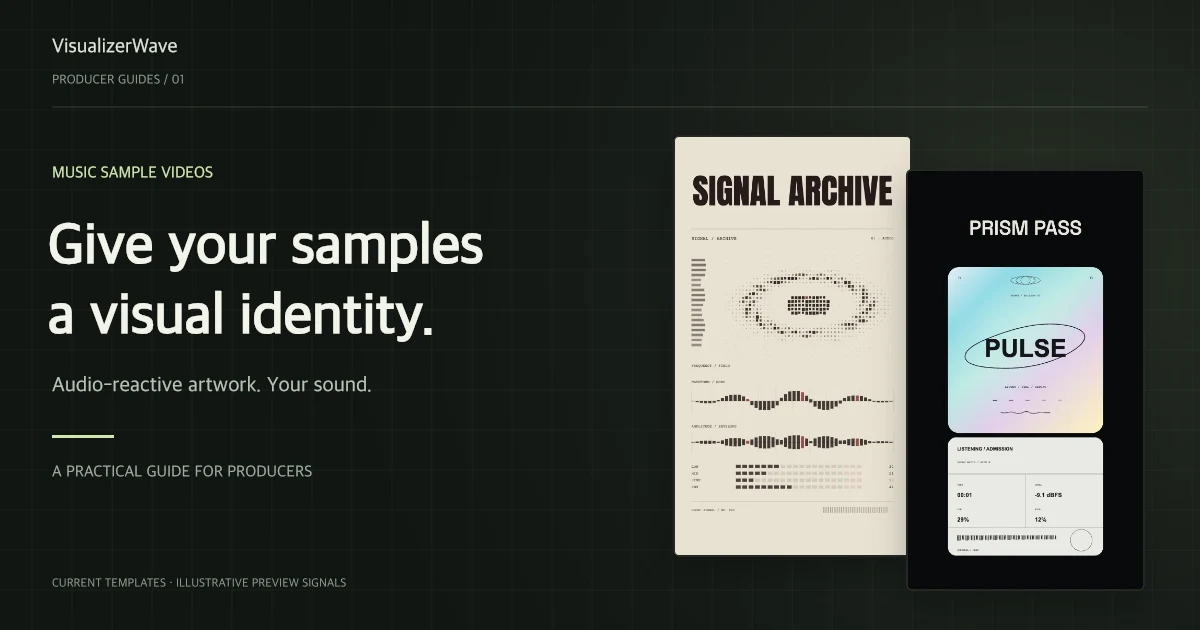
Try Signal Archive for a technical, printed-waveform treatment, Prism Pass for a brighter graphic layout, or Loop Runner for a playful pixel direction. Pick the one that suits the sample's character, not necessarily the one with the most movement.
These are starting points, not genre rules. A sparse piano loop can look stronger against a restrained technical design than an elaborate piano illustration. A hard drum break may need little more than a strong waveform and a short name.
If you do use artwork or a video background, keep it subordinate to the sample information. Avoid placing a moving spectrum directly over faces, a pack logo, or the title.
3. Make a portrait layout intentionally
For a Reel, Short, or TikTok, start in 9:16 rather than cropping a landscape video at the end. A 1080 × 1920 export is a practical starting point when your browser supports it. For a feed post, 4:5 or 1:1 may suit the composition better; use 16:9 for a landscape YouTube demonstration.
The social video size guide helps you compare the canvas shapes.
Put the most important information comfortably inside the frame. A title placed at the very top can sit behind a phone's camera cutout or a platform overlay. Move the BPM/key label down if needed, and inspect the uploaded draft on an actual phone. There is no single safe position that covers every app interface.
4. Give the sample useful information, not a filename dump
A concise label is easier to read than a long export name. For example:
NIGHT GLASS
80 BPM · C minor
Melody loop · Your producer name
Use a short title, then secondary information. For a pack preview, you might show the pack name instead of repeating your handle in several places.
Enter the BPM and key from your DAW or session notes. VisualizerWave's sample-information fields are display labels, not a promise of automatic audio analysis. Changing a displayed BPM does not stretch the recording or retime the MIDI. When the MIDI contains usable metadata, Use MIDI values can fill supported information; still check it before publishing.
5. Add MIDI when it explains the sample
For chords, keyboard playing, or an arpeggio, a note-driven sample visualiser can make a preview more informative. Load the rendered sample and its matching .mid file, then choose an Audio + MIDI look.
Key Garden shows a wide keyboard, with at least 61 keys and an expanded range when the file needs it. Sprout Score turns note activity into a botanical composition. Violet Weave offers an abstract, connected treatment for melodic patterns and chords.
Check the first few notes and a later phrase. If they do not line up with the recording, fix the timing rather than hiding it with more effects. The audio and MIDI sync guide walks through offsets, tempo, and pattern repeats.
No matching MIDI? Keep the audio-only version. An honest waveform video is more useful than unrelated notes that imply a performance the listener is not hearing.
6. Export a short test before making the whole batch
Watch a test export with sound. Check that the title is readable, the loudest moment is not visually overwhelming, and the video contains the right version of the sample. MP4 and WebM availability, resolution, and export performance depend on your browser and device. Desktop Chrome or Edge is the recommended starting point; use the compatibility test before planning a large batch.
Save a portable .visualizerwave project once the layout works. For the next sample, replace the media, update the labels, and check the framing again. A consistent pack identity is useful; identical captions or the wrong BPM are not.
Sample visualizer questions
Can I make a sample video without MIDI?
Yes. Audio-reactive templates work with the recording alone. MIDI is optional and is useful when you want the actual notes to drive part of the design.
Can I turn an MP3 into a piano-key visualization?
Not by importing it as MIDI. VisualizerWave does not transcribe audio into notes. Use the original MIDI if you have it, or choose an audio-driven waveform or spectrum.
Can the same design work for a whole sample pack?
Yes. Reuse a saved project as your starting point, then replace the audio, MIDI where relevant, and sample details. Recheck timing and the beginning/end of each export rather than assuming every sample has the same length.
VisualizerWave is $19 paid once, with unlimited exports and future updates included. Explore the templates and lifetime offer, or read the MIDI visualizer guide before choosing a note-driven look.