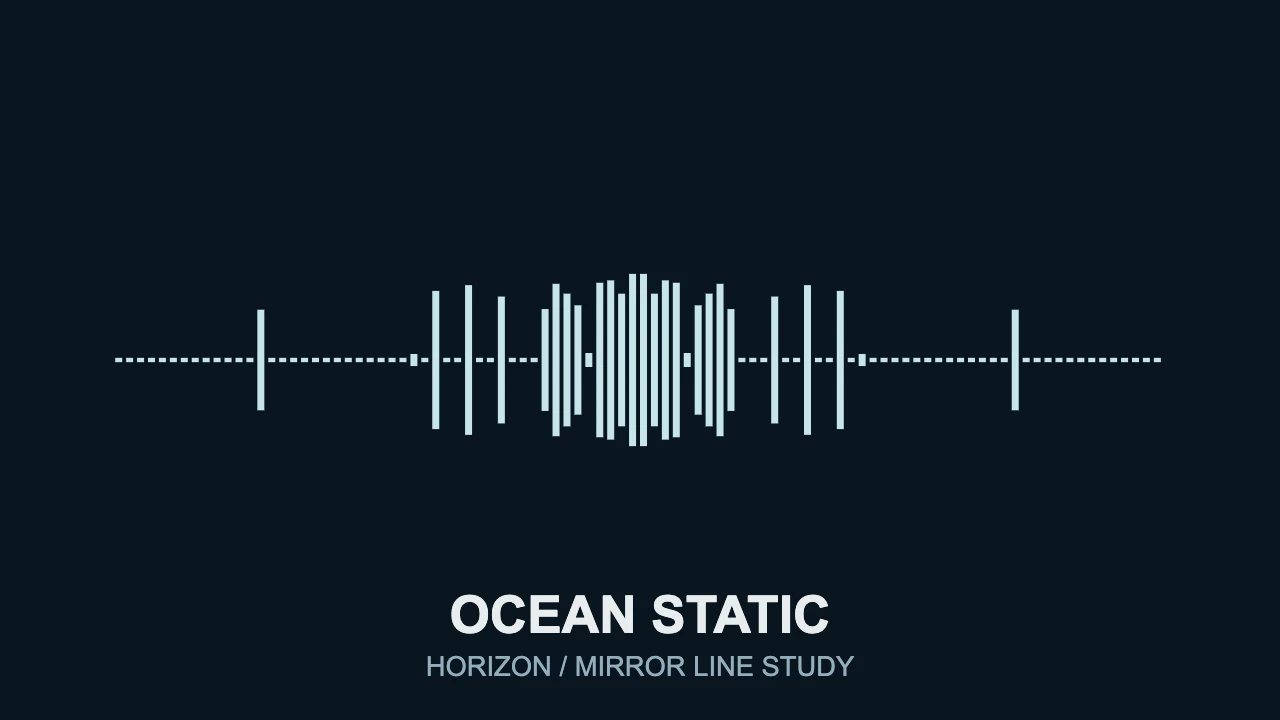
To make a line music visualizer, import your audio, choose a horizontal reactive style, and leave clear space between its movement and your title. In VisualizerWave, the Mirror Line template is a useful starting point: narrow frequency bars extend above and below a centerline, while the artist and track name sit underneath.
The result is a minimal spectrum video, not a waveform of the whole song. This guide builds that specific layout and shows how to keep it readable during both quiet and strong passages. For the full first-time setup, follow how to make a music visualizer.
Choose the kind of line you want
“Line” can describe the composition without describing how the sound is analyzed. A row of narrow spectrum bars can feel like one horizontal line, even though each bar responds to a different part of the frequency range. A continuous waveform has a different appearance and meaning.
Use Mirrored Line when you want a centered band of bars that grows in both directions. Choose a waveform-based style when following the audio signal's shape matters more than the distribution of frequency energy. The waveform versus spectrum guide explains those alternatives in more detail.
This workflow uses an imported audio file to create a video. It does not depend on a music streaming service, live microphone or line-in connection.
Start with Mirror Line and simplify the frame
- Import the finished track and choose the canvas shape. A landscape canvas gives a horizontal spectrum plenty of width. Compose a separate vertical version when you need one; the social video-size tool helps compare ratios.
- Select the Mirror Line template. Its visualizer layer uses the Mirrored Line style. If you are working in an existing composition, select its visualizer layer and choose that style instead.
- Replace both text fields. Keep the artist name and track title short enough to read at the intended viewing size. Remove a text layer if you do not need it.
- Choose one clear background and line color. Start with a solid background or a quiet image. A busy photo makes small bars harder to follow. Turn off Use gradient if you want a single color.
- Set the line's position and Scale. Keep it inside the frame and away from the text. Scale changes the overall visualizer, so inspect both its width and height after adjusting it.
The example above uses a dark blue background, pale cyan bars and two text layers. It has no glow, particles or beat zoom. That leaves the music-driven shape and title as the main elements.
Give mirrored bars room above and below
Mirroring changes the space you need. A bar that reaches above the centerline also reaches below it, so a title placed just underneath a quiet spectrum can disappear behind the bars during a stronger passage.
Place the spectrum first, play a strong section, then position the title beyond its visible reach. Check the space above the centerline too, especially if you add cover art there.
In Mirrored Line, the reflection is part of the visual design. The upper and lower halves repeat the same frequency response; they are not separate left and right audio channels. Low-frequency movement is arranged around the horizontal center, with higher parts of the selected range farther toward the sides.
If you want the cover artwork to be the main subject, consider the circle visualizer workflow or a cover-art composition. A minimal line does not need to fill every empty area of the screen.
Tune the response before adding effects
Begin with the strongest section of your track. Adjust one control at a time, then return to a quieter passage to see what changed.
- Reactivity / Movement: lower it when the bars stay tall and crowded. Increase it carefully if meaningful changes are difficult to see. It changes the visual response, not the soundtrack's playback volume.
- Smoothing: increase it to calm rapid changes; reduce it if the motion feels too slow to settle. Judge the result while the track plays, rather than from a single frame.
- Low Cut / High Cut: choose the frequency range that contributes useful movement. For a bass-led composition, try less high-frequency content, then check whether vocals or melodic sections still look active. The slider values are normalized controls, not frequency labels in hertz.
- Bar Count: compare fewer, broader marks with more, narrower marks. In Mirrored Line, spacing and bar thickness follow the count and layout; it does not use the separate Bar Width and Gap controls offered by the Bars style.
More sensitivity is not always more readable. If every moment looks equally busy, reduce the response or reconsider the selected frequency range before adding glow. The animation design guide covers broader choices about effects and musical emphasis.
A worked quiet-versus-strong example
We rendered the same Mirror Line composition with original synthesized audio: two quieter seconds, two stronger seconds and two seconds of silence. The settings stayed fixed throughout:
- 96 bars, smoothing 0.65, reactivity 0.80 and Scale 1.00.
- Low Cut 0.00 / High Cut 0.35, with a single pale cyan color.
- A 1280 × 720 landscape canvas at 30 fps, with glow and beat movement disabled.
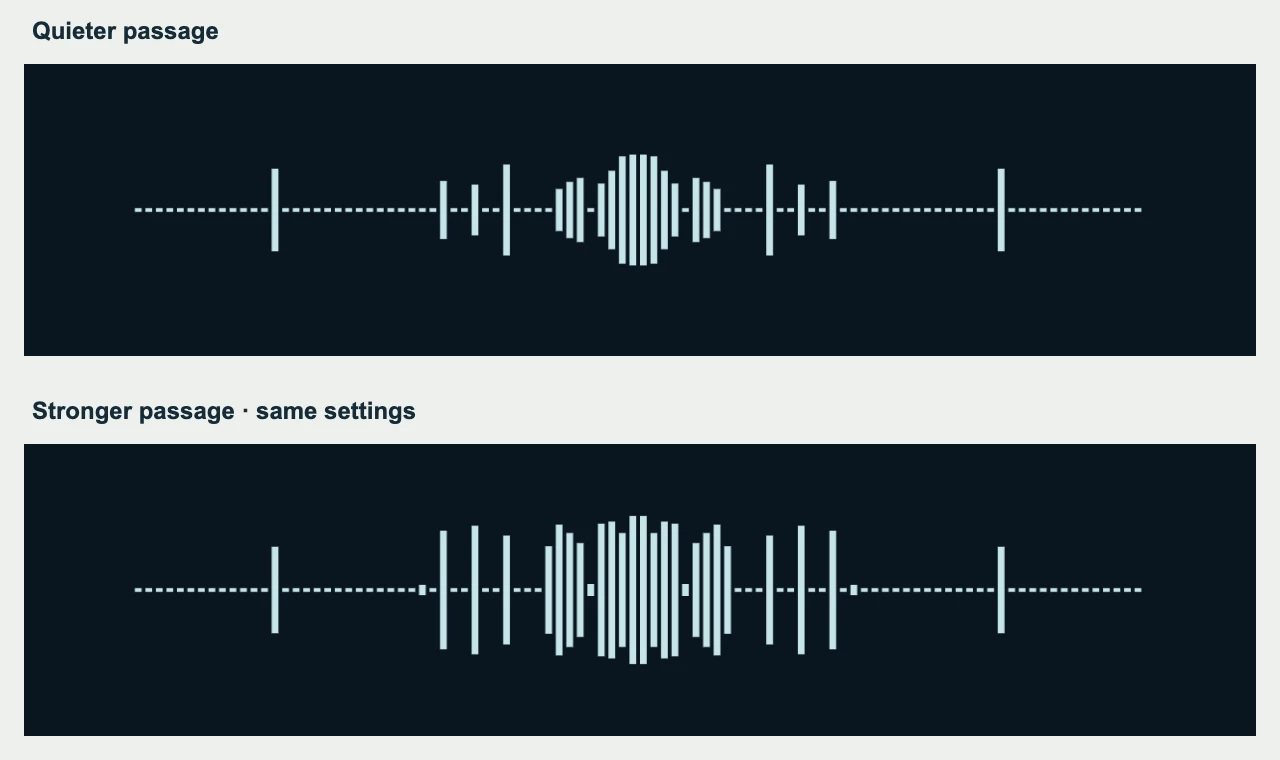
The two passages use the same layout and controls. The text is omitted from this comparison to make the spectrum easier to inspect.
The stronger passage produces a larger, busier shape, while the quieter passage still has visible detail. During silence, the bars settle toward their minimum marks. A thin baseline in a silent section does not necessarily mean that audio is still being detected.
These settings demonstrate one signal and composition. They are a starting point to compare against your own track, not a preset that guarantees the same silhouette. A mastered song with sustained bass can behave differently from this short synthetic example.
The actual six-second test exported and decoded as an MP4 with its soundtrack. It verifies this short example on the tested browser, rather than guaranteeing every resolution, browser or full-track export.
Check the small-screen version before exporting
View the composition at approximately the size people will watch it. The artist name should remain readable, and the line should still look intentional instead of turning into faint dots against the background.
If fine bars disappear, try fewer bars, stronger color contrast or a larger visualizer. Recheck the title clearance after resizing. If the track name is too small, shorten or enlarge the text instead of making the entire design busier.
A vertical canvas has less horizontal space. Revisit Bar Count, Scale and text placement together. Keep essential information away from likely platform overlays, then inspect the destination app's upload preview.
Before rendering the whole release, export a short section containing a strong attack and a quieter moment. Watch the downloaded file with sound, confirm that the intended track is present, and check that the largest bars remain clear of the title and frame edges. Run the browser compatibility check for the export format and resolution you plan to use.
When the composition works, save a portable .visualizerwave project so you can reuse it for another release. Replace the audio, update the text and check the response again for each new track.
VisualizerWave is $19 one-time with unlimited exports. See the lifetime offer to create a minimal line visualizer around your own music.