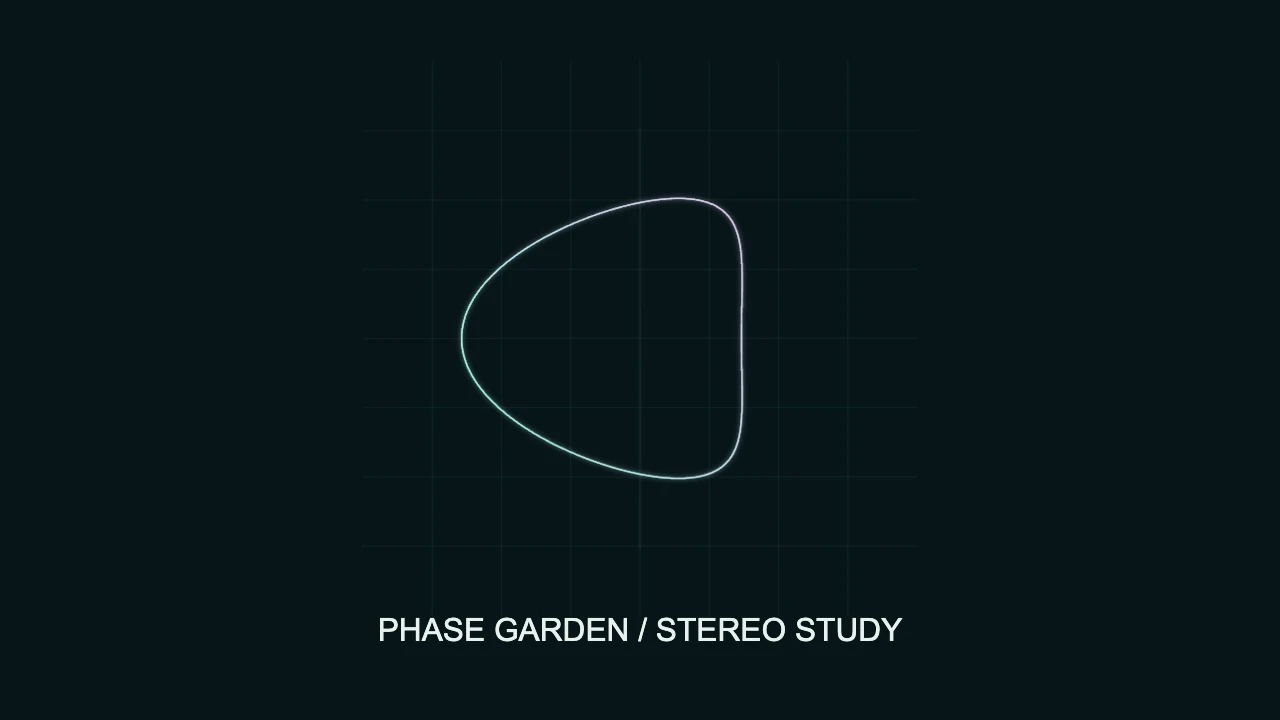
To make an oscilloscope music visualizer in VisualizerWave, import your audio, choose Stereo Scope, select a Stereo view, then adjust the beam and trails before exporting a video. This template traces the left and right audio channels. Matching channels can produce a straight line; a more open shape depends on how those channels differ.
You can create this video without a physical oscilloscope or a live audio connection. The result is a creative visualization of your imported track, not a calibrated electrical measurement. For the general audio-upload and export workflow, start with how to make a music visualizer.
Choose stereo tracing or a generated figure
Two similar-looking effects can tell different stories about the sound:
- Stereo Scope uses the actual left and right channel samples to draw the trace. Its shape depends on the selected view and the relationship between the channels.
- Scope Figures draws a chosen geometric figure whose size and brightness respond to the audio level. The figure is generated; its outline is not a picture hidden in the recording.
Choose Stereo Scope if you want the channel signals to determine the path. Choose Scope Figures if a controlled geometric motif suits the release better. Neither approach identifies the notes or instruments in the track.
A frequency spectrum is another option: its bars represent energy across frequency bands rather than a path drawn from the channel samples. The waveform and spectrum comparison explains the broader differences. If you want a horizontal row of reacting bars, use the minimal line visualizer guide.
Build a clear Stereo Scope composition
- Import the intended audio file. Use the final version you plan to publish. If stereo tracing matters, check that it contains the left and right signals you expect; a two-channel file can still hold identical audio in both channels.
- Choose the canvas shape and Stereo Scope template. Start with landscape for a regular YouTube video, or compose a separate vertical version for a short post. The video-size tool helps compare ratios.
- Select the scope layer and its Stereo view. Start with Stereo field · vertical for the example in this guide. Try the other views before deciding which presentation is most useful for the track.
- Set the artist and track text. Keep the caption outside the beam's largest reach, including its glow. Remove a text layer if the composition does not need it.
- Simplify the background. A quiet, dark backdrop makes a thin, bright trace easier to follow. Add artwork or extra effects after the beam and caption are readable.
Use Scope size, Offset X and Offset Y to place the scope. These affect the composition rather than changing the source audio. Check the loudest or busiest section after moving or resizing it.
Understand what each stereo view draws
The same audio can look different when its samples are mapped to different axes:
- Stereo field · vertical: matching left and right signals form a vertical trace. Differences between the channels can open it sideways.
- Stereo field · horizontal: the field is arranged horizontally, so matching channels form a horizontal trace.
- Left / right XY: the left channel drives the horizontal position and the right channel drives the vertical position. Identical channels form a diagonal line.
- Dual waveforms: the left channel appears on top and the right below, each drawn across time. This is useful when you want to see both signals separately.
Changing views changes the drawing, not the mix. An open shape is not a score for how good the music sounds, and a straight line is not automatically a fault.
The optional Scope grid helps frame the composition. It does not turn the video into an instrument with calibrated voltage or timing divisions.
Why your music may produce a single line
In the vertical field view, matching channel samples have no left-versus-right difference to spread across the horizontal axis. Mono audio, or the same mono recording copied into two channels, can therefore produce a vertical line even while the music is playing normally.
Here is a real example rendered with the same controls in both panels:
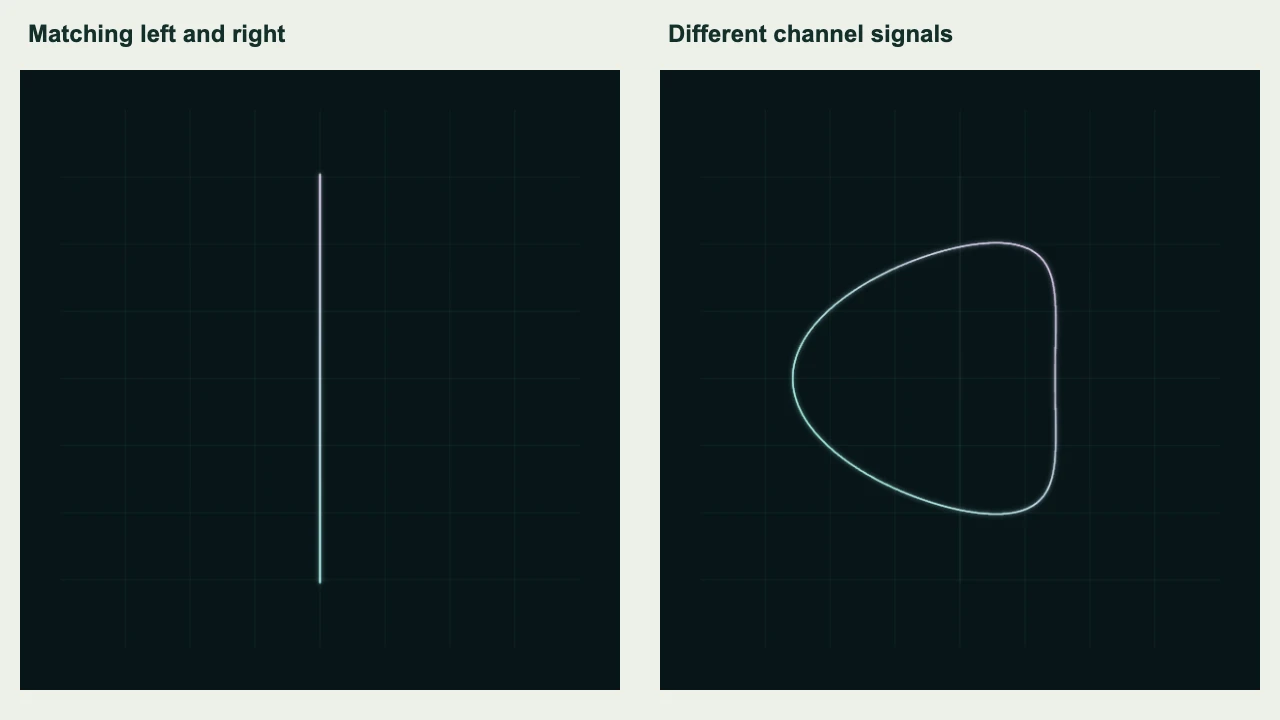
Left: identical channel signals. Right: the same synthesized tones with a phase offset in the right channel. Both use Stereo field · vertical; this is a demonstration, not a recommendation to change your mix.
We created six seconds of original stereo audio: matching channels for the first two seconds, different channel signals for the next two, then silence. The trace changed from a line to an open shape, and the phosphor trail faded during silence. The actual video exported and decoded as a six-second 1280 × 720 MP4 at 30 fps, with a stereo soundtrack.
The example uses Beam gain 1.8, Phosphor trails 0.18, Beam thickness 1.6, Beam glow 0.65 and Scope size 0.95. Its two colors are pale mint and pink. These are reproducible example settings, not universal settings for every mastered track.
If your own recording stays narrow, first check the source and the selected view. Increase gain only when a larger trace helps. If you want an ornamental shape regardless of channel similarity, Scope Figures serves that different purpose without requiring a wider mix.
Shape the beam without burying its movement
Start with a short trail and modest glow, then adjust one control at a time:
- Beam gain changes the visual trace's reach. It does not turn up the soundtrack. At high gain, the drawing is normalized to preserve its shape, so do not read its size as an absolute level measurement.
- Phosphor trails keeps earlier beam positions visible as they fade. Longer trails can make the design feel fuller, but can also obscure quick changes. Trails reset when you seek.
- Beam thickness helps a fine trace remain visible at a small viewing size. Increase it carefully so nearby parts of the path do not merge.
- Beam glow softens the trace's surroundings. Check the sharper beam itself before adding more glow.
- Beam color / End color controls the trace's palette. Keep enough contrast against the background, especially if the colors are close to it.
These are scope controls. Do not look for a spectrum's Bar Count or frequency-range controls to reshape this stereo trace. For broader composition and effect choices, use the visualizer animation design guide.
Check the downloaded video, not only the preview
Export a short representative section before rendering the full track. Include a busy passage and a quieter moment so you can assess both the trace and its fading trails. Watch the downloaded file with sound and check:
- The intended soundtrack is present and the trace changes with it.
- The beam and glow stay clear of the caption and frame edges.
- The caption and thin trace remain visible at phone size.
- The result still makes sense in the selected stereo view.
Run the compatibility check for the intended browser, format and resolution. The successful short MP4 example establishes that tested setup; longer or higher-resolution exports still depend on the browser and device.
Save a portable .visualizerwave project if you want to reuse the design. When you replace the track, check the view and gain again: a new recording's channel relationship can produce a very different path.
Will an ordinary song draw recognizable pictures?
A conventional stereo recording does not automatically contain the paths needed to draw a logo, face or landscape. Stereo Scope traces the samples it receives. Purposefully encoding a drawing into audio is a different creation task from making a visualizer video around an existing release.
For a chosen geometric shape that follows the audio level, use Scope Figures. For artwork that should stay recognizable, keep it as a separate image in the composition rather than expecting the channel trace to reconstruct it.
VisualizerWave is $19 one-time with unlimited exports. See the lifetime offer to build a scope video around your own track.