Animaker’s music visualizer places audio-reactive graphics inside a scene-based animation editor. It suits a project that combines a visualizer with animated text, image frames and other scene assets. VisualizerWave suits a reusable release composition built around your audio, with local analysis and rendering, portable project files and unlimited exports for $19 once.
For a full-song video, pay particular attention to duration. Animaker’s official walkthrough explains that extending a scene does not automatically extend an audio section that was initially trimmed to that scene. Text has its own timing, too. A successful opening preview therefore does not prove the whole recording will appear in the final video.
Reviewed October 25, 2026. This comparison is written by VisualizerWave. Animaker’s workflow below comes from its official illustrated guide and current pricing page. We reached an account requirement before editing, so we did not complete an Animaker export. The worked example is an actual VisualizerWave renderer/exporter test.
How Animaker’s music visualizer workflow works
Animaker’s guide starts with Create from Scratch, the cartoon animation style and a chosen aspect ratio. The visualizer is a property within that project, rather than a separate audio player.
The documented sequence is:
- Add the recording. Use Uploads for your own audio or choose a track from Animaker’s music library. Add it to the project’s overall timeline.
- Set the scene and audio lengths. The guide describes a default ten-second scene. Extend the scene to the intended length, then extend the audio section separately so it reaches the same endpoint.
- Add a visualizer. Open the Property library and browse the visualizers. Choose a style, then adjust its appearance. The guide demonstrates color and minimum/maximum decibel controls.
- Add the release identity. Place the artist and title, or use an image inside a frame. Check each text element’s duration; Animaker displays it as a separate section on the timeline.
- Preview and export. Check the complete project, then use Publish and Download Video. The guide describes a rendered video becoming available on the Exports page.
Those steps are useful when you want to build a scene around the music. They also create several timing boundaries to check. Adding a picture, animated title or effect should be followed by another pass through the ending.
The guide uses a library track, so you can explore that workflow with built-in media before uploading a release master. Review the terms for any stock media you intend to publish.
Check the scene, audio and graphic endpoints separately
Suppose you want a 16-second excerpt with a title that stays visible throughout. This is the intended timing, not a screenshot of Animaker’s interface:
| Part of the composition | Intended range | What a mismatch could cause |
|---|---|---|
| Scene or project | 0–16 seconds | The video ends before the excerpt finishes |
| Audio section | 0–16 seconds | The picture continues after the soundtrack stops |
| Visualizer element | 0–16 seconds | The graphic disappears while the track continues |
| Artist and title | 0–16 seconds | The release identity disappears near the end |
Animaker’s guide specifically documents extending the scene and audio separately. The visualizer row is an additional endpoint check to perform in your project; we did not test whether its current editor extends that element automatically.
For that 16-second example, preview around 9–11 seconds and again near 15–16 seconds. The first range crosses the ten-second boundary described in the guide. The second checks the actual ending. For a complete song, also inspect the final reverb tail and any intentional silence in the master.
Choose a shorter section deliberately when you need a teaser. A 16-second social excerpt and a three-minute release video are different deliverables, even when they use the same design. The music visualizer creation guide covers preparing and exporting a release from a finished recording.
Our full-duration VisualizerWave example
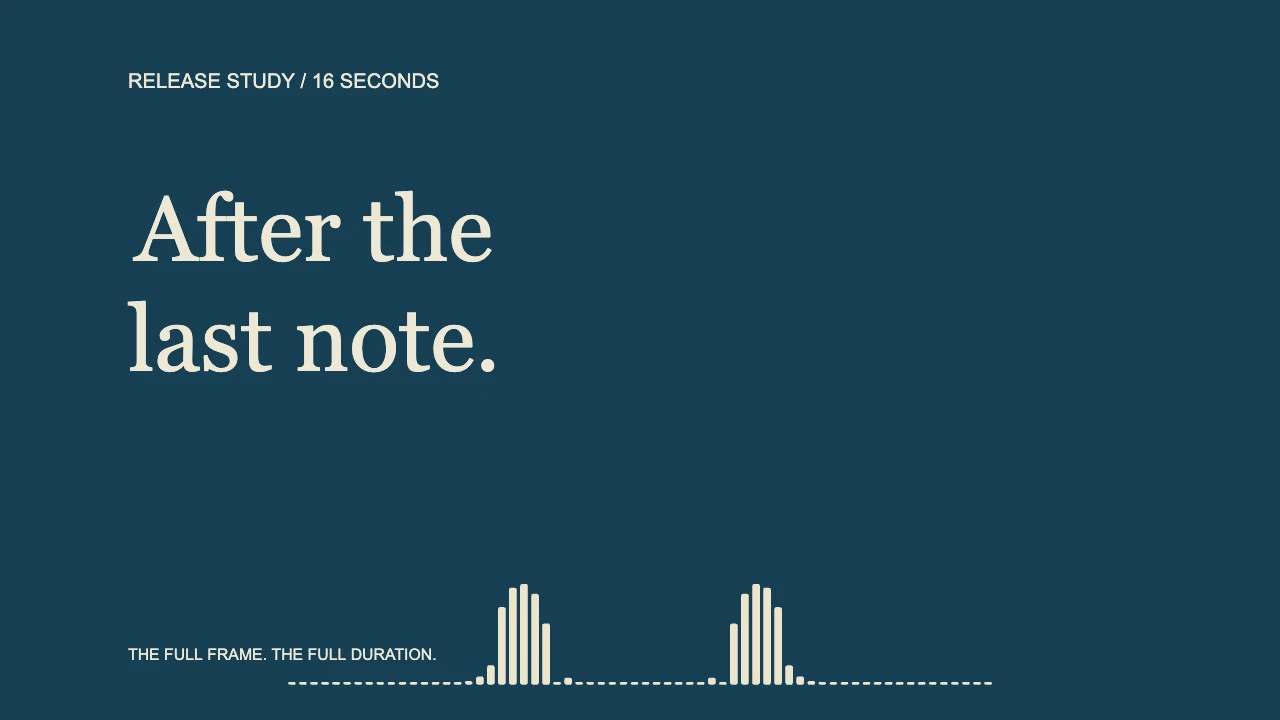
We created a 16-second composition with a blue background, cream frequency bars and the title “After the last note.” The bars occupy their own area below the words.
Actual VisualizerWave product-code export: 1280 × 720, 30 fps, 480 encoded video frames and a decoded duration of 16 seconds. The public file contains no audio stream. An existing internal diagnostic recording, repeated in memory, supplied the analysis. This is a duration and layout check, rather than an Animaker export or a listening sample.
We inspected the source render at 12.5 seconds, after the ten-second boundary, and at the last frame, about 15.97 seconds. The title area had identical pixels in both source frames. The bars responded during the active passage, and the analysis was silent at the ending. We also opened the encoded output and checked its final frame.
The practical acceptance criteria are straightforward: the saved video reaches the intended endpoint, the title survives to the final frame, and the visualizer has room to move during stronger passages. For your own release, listen to the saved soundtrack as well; this visual-only example cannot establish that a song’s audio tail survived an export.
Reproduce the release workflow in VisualizerWave
Load your recording through Media → Upload Audio File, choose a landscape, square or portrait canvas, then select a template. For this example we used Classic → Bars, with Movement 0.5 and Scale 0.65. Those settings are a starting point for this source, rather than values that will suit every master.
Edit the title text and leave clear space beneath it for the bars. Preview a strong section and the ending. Frequency bars show changing frequency content; they are different from a waveform tracing the audio signal. The waveform and spectrum guide demonstrates that distinction with the same source.
In Export video, check the shape, resolution, frame rate and format. For a complete recording, leave Export only a section off. For a teaser, enable it and verify both endpoints. Use Export 5-second test to inspect a short saved sample before the full export, then open the final file and check its length and ending.
Audio analysis and video rendering run on your device. Account and checkout services still use the network. MP4, WebM and higher resolutions depend on the browser and device; run the compatibility check on the machine you will use.
Animaker’s export plan matters as much as the visual style
Animaker’s visualizer landing page advertises exports up to 4K. Its current pricing cards allocate different resolutions and duration limits to different plans. Treat “up to 4K” as a product maximum, not the export quality included with every account.
These were the USD prices and limits displayed in our browser on October 25, 2026:
| Animaker plan | Monthly billing | Annual billing | Listed video length and quality |
|---|---|---|---|
| Starter | $45/month | $300/year, equivalent to $25/month | 15 minutes, FHD |
| Pro | $79/month | $516/year, equivalent to $43/month | 30 minutes, 2K |
| Enterprise | Custom quote | Custom quote | Unlimited length, 4K |
The comparison table listed 10 monthly video downloads for Starter and 15 premium monthly downloads for Pro. It listed three monthly downloads for Free, while the FAQ said free exports carry an Animaker watermark. The Free quality cell showed a dash, so we are not assigning it an unverified resolution.
Check the current account offer for your required assets, publication rights, length, quality and download allowance before committing. An annual equivalent is a way to compare prices; it is not the amount charged each month. We did not purchase or test those paid export entitlements.
VisualizerWave’s $19 one-time license includes unlimited exports without a VisualizerWave watermark. Device capability and the complexity of the project still affect what you can render. A short 720p test does not establish that a long 4K project will work on the same machine.
For another template-driven workflow, the Renderforest comparison explains why a template’s duration ceiling can differ from the account’s plan limit.
Which workflow fits your release?
Choose Animaker when the visualizer belongs inside a broader animated scene and its text, framing and asset tools fit your design. Allow time to check the scene, audio and object endpoints, then confirm the actual download conditions for your account.
Choose VisualizerWave when your main deliverable is an audio-reactive release video and you want local media processing, reusable compositions and unlimited exports for one payment. Save a portable .visualizerwave project alongside the final video so you can return to the design and its source media.
If your project centers on spoken dialogue and timed subtitles, the VEED audio visualizer comparison covers that different requirement. VisualizerWave’s editable title layers do not automatically transcribe a recording.
Make your release visualizer with VisualizerWave for $19 once.
Animaker is a trademark of its respective owner. VisualizerWave is not affiliated with Animaker.