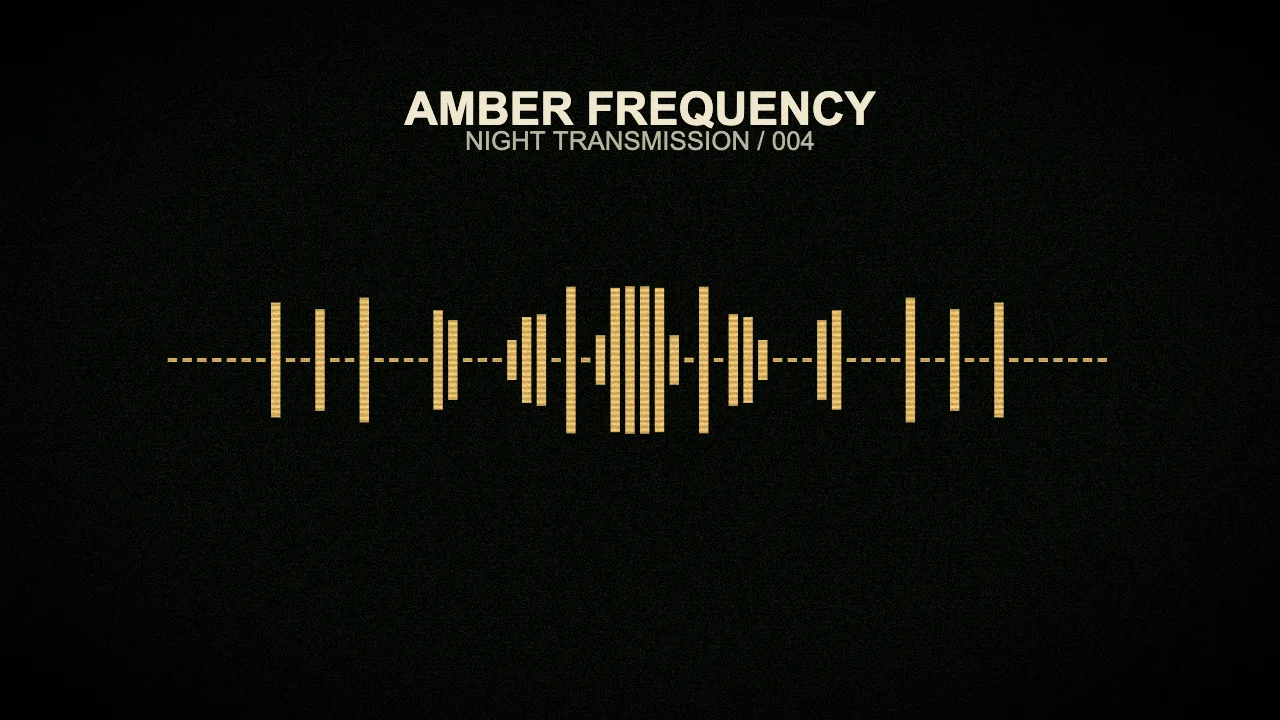
To create a vintage audio visualizer, start with a simple audio-reactive design, choose a restrained retro palette, then add CRT / Retro and a small amount of Film Grain. Keep the track title readable and test a short video export before rendering the full song. In VisualizerWave, you can build this look around an imported audio file without filming a physical display.
This guide makes an amber spectrum video with an old-screen feel. If you searched for a vintage audio visualiser to use with a hi-fi system, that is a different task: this workflow produces a music video from a file. For first-time setup, use the audio visualizer creation guide.
Choose the vintage look you want to reproduce
“Vintage” can describe several visual languages. Pick one before adding effects:
- An amber or green display: one bright signal color, a dark background, simple labels and restrained screen texture. This is the example below.
- A stereo scope: a glowing trace with trails, whose path depends on the audio channels. Use the oscilloscope music visualizer guide for that workflow.
- A retro release poster: artwork and typography lead the composition, while a small spectrum adds movement. Start with the type beat video guide when the release artwork is the main subject.
A spectrum and a waveform can both suit a vintage composition, but they show different information. Spectrum bars respond to energy across frequency bands. A waveform follows the audio signal over time. Giving bars a warm color does not turn them into an oscilloscope trace.
Build the amber spectrum composition
The example uses Mirror Line as its starting design. Its mirrored frequency bars give the center of the frame a clear subject, leaving room above for the artist and track name. The vintage character comes from the palette and processing rather than extra decorative objects.
- Import your finished audio and choose the canvas shape. Use landscape for the composition shown here. If you also need a vertical post, arrange that version separately rather than relying on a crop of the landscape video.
- Choose Mirror Line. Set the artist and track text, then move both above the spectrum. Leave enough space for the bars to expand during a loud passage.
- Use a solid, dark background. This example uses dark green-black,
#10150F. A quiet background makes the brighter signal easy to follow. - Give the visualizer one amber color. We used
#E4BD70with the gradient disabled. The main title is warm cream,#F0E6CE, and the smaller line is muted gray-green,#B9B39F. - Check the motion before adding texture. Preview a softer passage and a stronger one. The bars should change visibly without crowding the title or frame edges.
For the worked example, we used 64 bars, Smoothing 0.65, Movement / Reactivity 0.8, Scale 0.9, Low Cut 0 and High Cut 0.35. These are starting values for this audio, not a preset that will suit every recording. The minimal line visualizer tutorial explains the bar layout and response controls in more detail.
Add CRT texture and control the grain
Open the visual effects controls and enable CRT / Retro. CRT is a toggle; the separate Film Grain control lets you adjust grain intensity. Start with Film Grain at 0.10, then compare the result with grain disabled.
If your editor shows the Retro effect preset, it enables CRT and Film Grain together. It is separate from the design template also named Retro. You can build this amber example with Mirror Line and the individual effect controls; changing the design template is unnecessary.
Use these settings to reproduce the treatment:
| Setting | Example value |
|---|---|
| CRT / Retro | On |
| Film Grain | On, 0.10 |
| Keep text & logo sharp | On |
| Keep visualizer sharp | Off |
| Beat zoom and shake | Off |
The protection controls matter. If Keep visualizer sharp is enabled, the spectrum is drawn above the scene effects, so its appearance differs from this example. Keep text & logo sharp lets you retain texture around the signal while preserving readable release information.
These visual effects do not add tape saturation, vinyl noise or other processing to the soundtrack. Prepare that sound in your audio project if it belongs in the release.
Compare clean, subtle and heavy texture
Here is the same frame rendered three times with the same audio, colors, bar settings and position. Only the CRT and grain settings change:
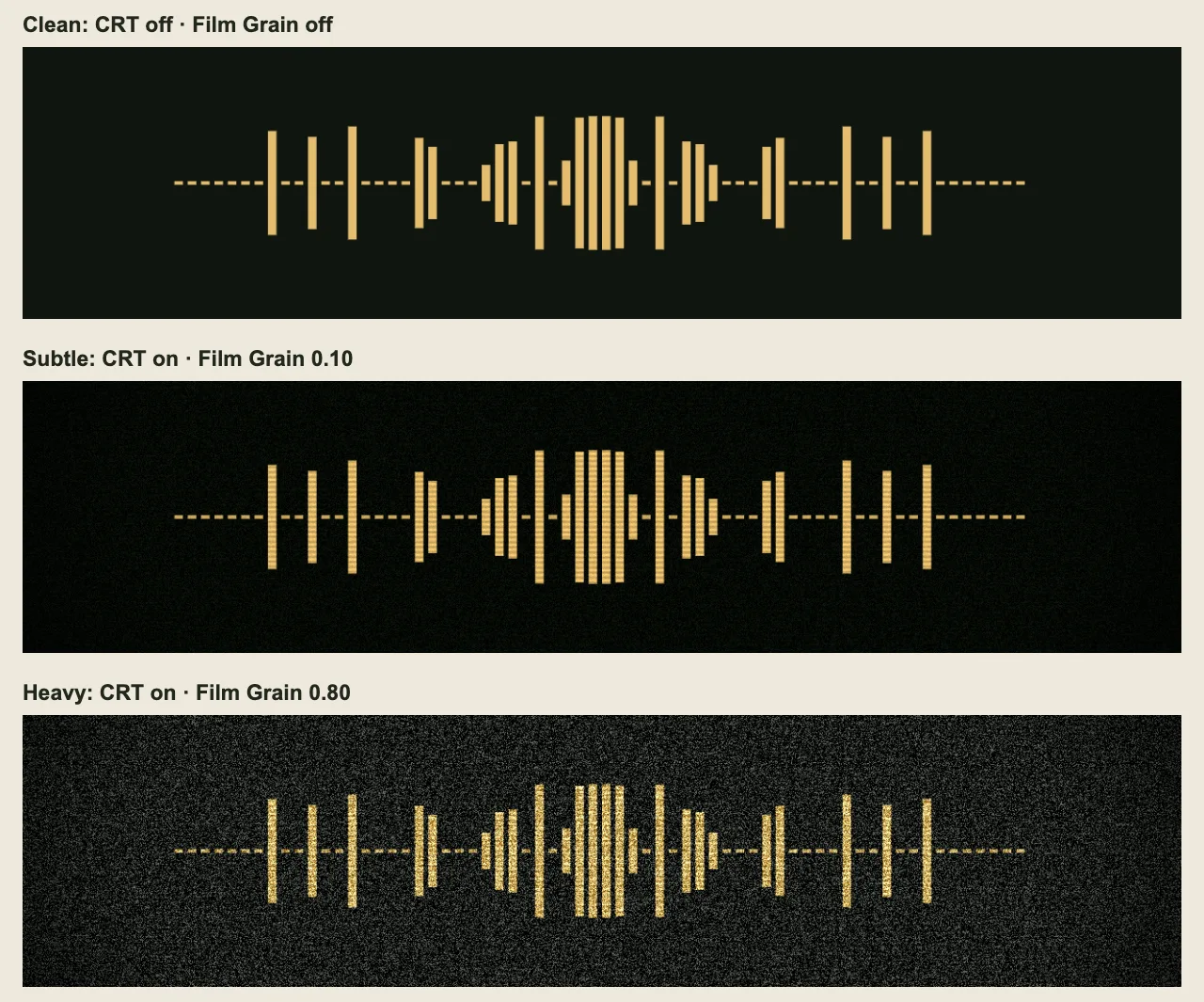
The panels show equal crops of the spectrum region. Top: CRT and Film Grain off. Middle: CRT on with grain at 0.10. Bottom: CRT on with grain at 0.80. These are product renders, not interface screenshots.
In the middle panel, the amber bars remain easy to distinguish from the darker surroundings. In the bottom panel, bright noise covers more of the background and breaks up the edges of the signal. That may suit a deliberately rough sequence, but it competes with the music-driven motion in a full-length visualizer.
Choose the amount at the size people will actually watch. Texture that looks interesting when enlarged may become distracting shimmer in a small video. If the image feels too busy, reduce Film Grain first, then compare CRT on and off. Add other effects only after that comparison answers what is missing.
What we checked in the original export
We created six seconds of original synthesized audio with softer and stronger sections, then exported the amber composition with CRT and Film Grain enabled. The example encoded as 1280 × 720 MP4 at 30 fps, with an AAC soundtrack.
Decoded frames showed the spectrum changing across the passages while the protected title stayed clear. The comparison above uses the same frame at 2.6 seconds for all three treatments. It demonstrates the effect settings rather than comparing different tracks or different moments.
This short export verifies that tested browser setup. It does not establish that every browser or device can export a long track at a higher resolution. Run the compatibility check for the format and size you intend to use.
Check the finished video before the full render
Export a short representative section and watch the downloaded file with sound. Include both a quieter moment and a busy passage. Check that:
- The intended soundtrack is present and the spectrum responds through both passages.
- The title stays readable at phone size, especially over any artwork you add.
- Grain supports the composition without overwhelming the moving signal.
- The tallest bars and any added glow remain inside the frame.
If a vertical version feels cramped, move the labels and resize the spectrum for that canvas. The social video sizes tool helps choose the ratio; it does not replace checking the composition in that shape.
Save a portable .visualizerwave project once the design works. When you replace the audio for another release, check its response again before exporting. A different mix can need different movement or frequency-range settings even when the vintage treatment stays the same.
VisualizerWave is $19 one-time with unlimited exports. See the lifetime offer to make a retro visualizer around your own track.