If your music visualizer's audio and video are out of sync, check the saved video before changing the project. Compare a clear sound and its intended visual cue near the start, then repeat the check later. A similar gap at both points suggests a constant offset; a growing gap needs a different investigation. If the mismatch appears only during preview or in one player, first investigate that playback path.
For frequency bars, the tallest point is not an exact timing marker. Analysis and smoothing shape the animation. Use an identifiable event, source waveform or deliberately timed reference when measuring a delay, rather than moving the soundtrack until every peak looks convincing.
Establish where the mismatch first appears
Keep the original visualizer export before trimming it, replacing its soundtrack or passing it through another app. Open that exact file, then compare it with any later edited or downloaded version.
| Where the problem appears | Useful next comparison |
|---|---|
| Editor preview only | Check the saved export before moving the audio |
| One player or output setup only | Compare the same file in another available playback setup |
| The original saved export | Inspect a clear early and late reference in that file |
| A later edit or replacement soundtrack | Compare its audio start and edit boundaries with the original export |
| Imported note graphics are wrong before export | Check the matching MIDI performance and its timing controls |
This identifies the stage to investigate; it does not diagnose a codec or device from the symptom alone. Our study below measures the encoded file and decoded audio. It does not establish what a particular speaker, headset or television adds during playback.
Compare the same event at two or more times
Choose a sharp, identifiable attack in the finished recording. In a video editor you already use, inspect its audio waveform against the intended picture frame. Check a second event later in the file and, for a full song, another near the end.
Record audio event time minus visual cue time:
- A positive result means the sound occurs later than the cue.
- A negative result means the sound occurs earlier.
- Similar results at several points suggest a constant displacement.
- A changing result suggests drift, an edit, a speed change or references that do not actually correspond.
For example, a cue at 2.000 seconds and its sound at 2.294 seconds give +0.294 seconds, or 294 ms of audio delay. Check the other references before applying that shift to the whole track.
Frame rate sets the picture's timing granularity. At 30 fps, one frame represents about 33.3 ms; at 60 fps it represents about 16.7 ms. A measured audio offset can lie between video frames. Use your receiving editor's audio timing precision where available, and inspect the saved result afterward.
A measured native export and a controlled delayed copy
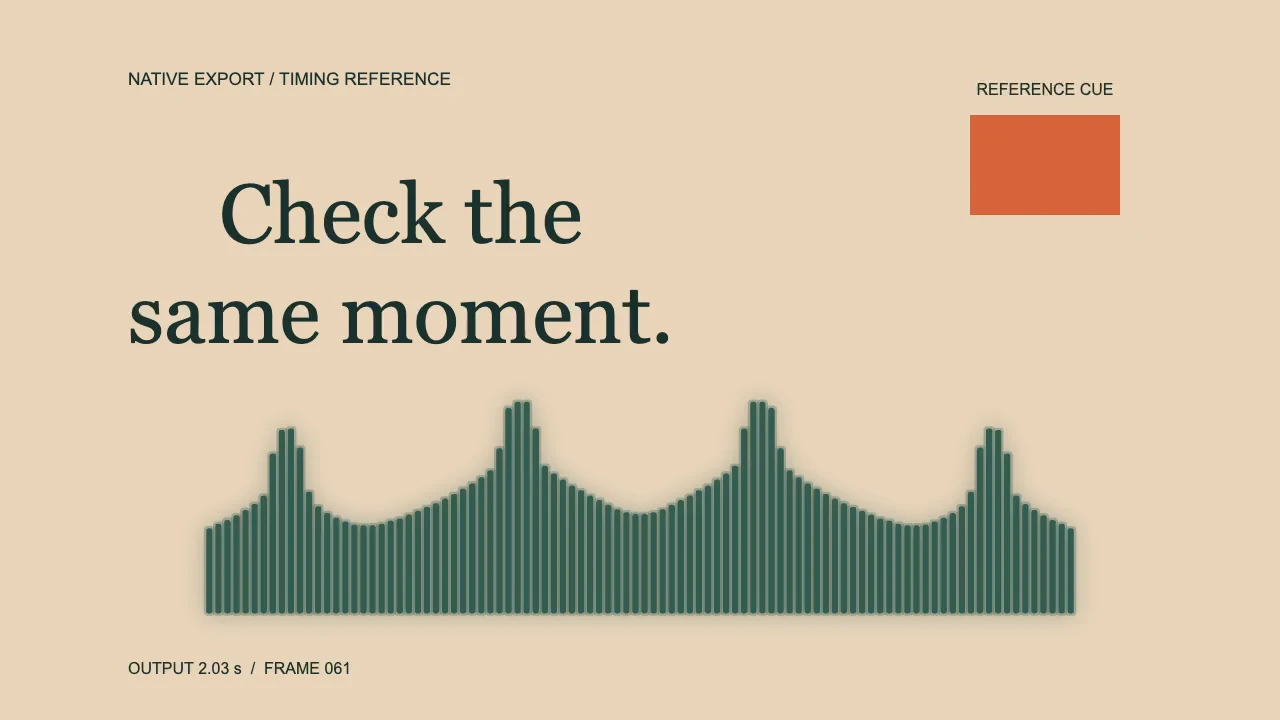
Actual VisualizerWave scene and Fast MP4 export, with a diagnostic cue rectangle and output timecode added for this test. Those overlays are test instrumentation, not editor interface controls. The public animation contains zero audio streams; soundtrack-bearing measurements stay private.
We created a private recording with three known events and exported source time 00:01–00:05. Their intended output positions were 0.500, 2.000 and 3.500 seconds. The encoded picture showed the reference cue at frames 15, 60 and 105, counting from frame zero, in a 30 fps video.
We then decoded the saved audio and compared each event with the original recording. The native MP4 measured a consistent 44 ms audio lag against those exact cues in this short desktop Chromium test. We also checked the first event through the browser's audio decoder, which returned the same displacement.
To make a larger mismatch reproducible, we added 250 ms of audio-only delay outside VisualizerWave, keeping the encoded picture unchanged. That copy measured 294 ms late. Removing the measured total delay in a separate processing step aligned the three references.
The visual cues stayed at 0.500 / 2.000 / 3.500 seconds in all three files.
| File checked | Measured decoded sound times |
|---|---|
| Native Fast MP4 reference | 0.544 / 2.044 / 3.544 s |
| Copy with an added 250 ms audio delay | 0.794 / 2.294 / 3.794 s |
| Copy corrected by its measured 294 ms | 0.500 / 2.000 / 3.500 s |
The correction followed the measurement. Removing only the intentionally added 250 ms would leave the native reference's measured 44 ms displacement. Assuming the first file was perfectly aligned would have hidden that difference.
These are results for a four-second, 1280 × 720, 30 fps, 120-frame picture, using native VisualizerWave analysis, rendering and Fast MP4 export on November 3, 2026. Audio positions came from decoded PCM comparison; cue times came from encoded frames. The correction used FFmpeg outside the product. We did not isolate the cause of the native 44 ms lag, test a full song, or certify other browsers, Realtime exports or physical playback devices. Do not apply 44 ms or 294 ms to every project.
Correct a confirmed constant offset at the right stage
If a later edit introduced the mismatch, return to that edit and check the original export against the replacement audio. A common point to inspect is the start: an excerpt beginning one second into the song cannot simply be paired with the full recording beginning at zero.
When the same verified displacement exists throughout the saved file, use an editor with separate audio and picture timing controls. Move late audio earlier, or early audio later, by the measured amount. Keep an untouched copy, check both ends and export a new short test. Avoid repeated lossy re-encoding while experimenting.
Moving audio earlier can remove material at the beginning unless the edit has room for it. Delaying it can extend the tail. In our controlled recording, silence around the events allowed the measured correction without cutting a reference event; your music may need different edit boundaries.
VisualizerWave's Music response, Sensitivity, Movement and Smoothing settings change visual behavior. They are not a global saved-soundtrack delay control. Imported MIDI has its own offset, which shifts note events rather than repairing the timing of an entire encoded audio/video file.
Investigate drift instead of chasing it with one shift
If an early event aligns but later events increasingly miss, a single offset will not align both. First confirm that the soundtrack and visualizer use the same final arrangement, including any edits, silence trimming and speed changes.
For video backgrounds or a later video edit, inspect how the receiving editor interprets the source timing and whether any clip has been stretched or retimed. Keep an original file for comparison. A frame-rate label by itself does not prove a drift cause, and changing the extension does not repair timing.
Our controlled copy reproduced a constant delay, not gradual drift. Use a longer saved test with spaced references when drift is the symptom. The export settings guide covers formats and frame rates; the compatibility page covers export and playback failures.
Separate MIDI timing and smoothed motion from file sync
If piano notes are early, late or repeat at the wrong point in both preview and export, follow the MIDI and audio synchronization guide. It covers matching export origins, Offset, BPM override and repeat length. MIDI contains note events, not the instrument recording.
If a frequency spectrum moves slowly but an exact reference is aligned, inspect the chosen frequency focus and smoothing before shifting the soundtrack. A low-frequency band, a sustained note and a smoothed decay do not have to peak at the same moment as a short percussive sound. The bars-not-moving diagnostic demonstrates those response settings separately.
Save a representative test before the full release
In VisualizerWave, check the intended source section, open Export video and read the range shown for Export 5-second test. The test follows the selection or playhead and can be shorter near the ending. Save it and inspect that exact file before continuing.
A short opening test cannot establish that the end of a long track stays aligned. Also check a later section, then verify widely spaced events in the full saved video. If the issue persists, keep the source, project and failed file, and note the browser, export method, selected range and whether the mismatch appears before or after a later edit.
If the file has no sound at all, use the silent-export guide. For the complete creation workflow, follow the audio visualizer tutorial. VisualizerWave is $19 once, with unlimited exports; see access and pricing.