For a music visualizer built from still artwork and reactive graphics, MP4 at 1080p and 30 fps is a useful starting point when your browser can export it and your destination accepts it. Choose the video shape first. Consider 60 fps for motion that benefits from more frames, and 4K when the source artwork, delivery plan and device justify the extra pixels.
The best music visualizer export settings are the ones that produce a clean, playable saved file for your release. Check a short encoded sample before rendering the whole track. A smooth editor preview does not prove that the export will finish or open in the next app.
One scene, four actual MP4 exports
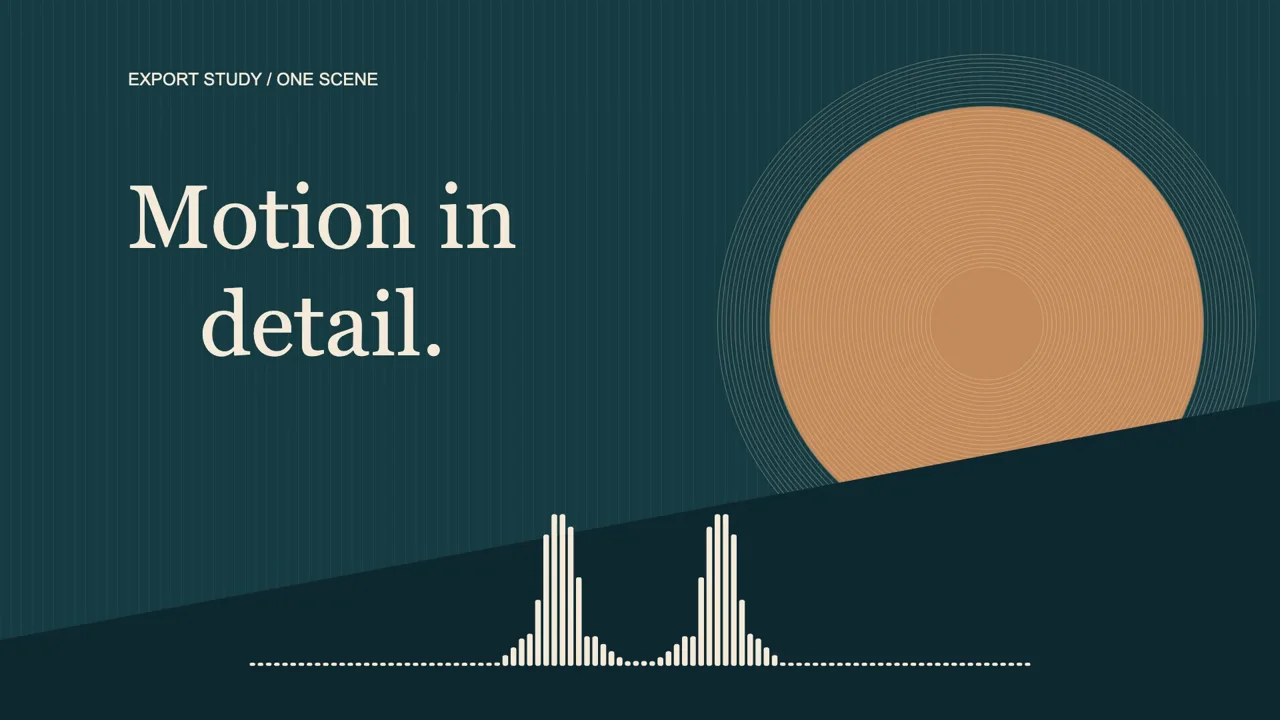
Actual VisualizerWave scene and MP4 export: four seconds of original geometric artwork, text and a reactive spectrum. The analysis comes from a private diagnostic recording. Every public example linked here contains no audio track.
We exported the same scene at four settings in desktop Chromium on November 2, 2026. The artwork started at 3840 × 2160, and the composition used the same colors, text, bars and source section. These are measured file sizes, rather than estimates from an export dialog.
| MP4 output | Measured size and frame count |
|---|---|
| 720p / 30 fps | 0.323 MB · 1280 × 720 · 120 frames |
| 1080p / 30 fps, playing above | 0.778 MB · 1920 × 1080 · 120 frames |
| 1080p / 60 fps | 0.741 MB · 1920 × 1080 · 240 frames |
| 4K / 30 fps | 1.440 MB · 3840 × 2160 · 120 frames |
Test conditions: H.264 through VisualizerWave's Fast MP4 path, High quality, four-second duration, still background, one desktop browser. MB means decimal megabytes. These silent files exclude the soundtrack size of a normal music video. This short check does not establish full-song performance or support on another device.
Notice that 60 fps did not double the file size: this 1080p60 output was slightly smaller than 1080p30. Encoded size depends on the frames and encoder behavior as well as its target bitrate. This result is a reason to measure your own sample, rather than a promise that 60 fps will save space.
MP4 vs WebM: check the receiving app first
MP4 and WebM are containers. They hold video and, when included, audio streams. A codec encodes each stream. The extension alone does not tell you every codec or whether a particular editor can import the file.
Our private soundtrack check produced H.264 video with AAC audio in MP4, and VP9 video with Opus audio in WebM in this browser. The public animations have their entire audio streams omitted or removed.
| Choice | When it makes sense |
|---|---|
| MP4 | A practical first test for a release upload or handoff to an editor that accepts your MP4's codecs. YouTube's encoding guidance includes MP4 and H.264. |
| WebM | An alternative when your browser offers it and your intended player, editor or upload destination accepts the encoded file. Test that handoff before a full song. |
We also recorded a silent 1080p WebM sample. With 30 fps requested, its Realtime recording contained 123 video frames over approximately 4.07 seconds and measured 0.964 MB after audio removal. The MP4 path calculates frames; the WebM path records in real time. Their codecs and timing differ, so these files are not a controlled comparison of codec efficiency.
Changing .webm to .mp4 in a filename does not convert the container or codecs. If your next app rejects the file, export an accepted format or perform a real conversion in a suitable video tool. Keep the original file so you can avoid unnecessary repeated encoding.
Run the export compatibility check in the same browser you intend to use. Available APIs are useful evidence, but a completed saved-file test is stronger evidence for your actual project. If a run fails, follow the export troubleshooting steps for the reported symptom.
720p, 1080p or 4K: what detail survives?
At a landscape 16:9 ratio, 4K means 3840 × 2160, four times the pixel count of 1920 × 1080. It does not mean four times the visible detail in every design, or four times the final file size.
In this study, the small grid lines and concentric circles provide details to inspect. Open the original files at their native size and compare those lines, the edges of the type and the spectrum tips. An inline player scaled to a small browser window cannot show every difference between the files.
Use 1080p as a starting point for a normal release video. Try 4K when you have sufficiently detailed artwork or graphics and a reason to deliver a larger image. Increasing the output resolution cannot restore missing detail in a small, blurry cover image. Cropping deeply into an image also leaves less source detail for the final frame.
Use 720p for a lighter initial check or a constrained device, then judge whether the saved result is adequate for its destination. A smaller output with readable type can be more useful than a larger file with tiny text.
Resolution is separate from video shape. Our landscape 1080p examples are 1920 × 1080; a vertical 9:16 1080p project is 1080 × 1920. Use the social video sizes tool to choose the placement and shape before arranging your scene.
30 fps or 60 fps: decide from the motion
Frame rate describes how many video frames represent each second. For four seconds, 30 fps provides 120 frames and 60 fps provides 240, as the MP4 files above demonstrate.
For a restrained spectrum over still artwork, start with 30 fps and inspect the saved motion. Try 60 fps when fast movement looks noticeably better with the extra temporal detail. Compare at normal playback speed on a display and player capable of showing the difference; paused frames alone cannot tell you how smooth it feels.
More frames also mean more rendering and encoding work. Doubling fps does not require the final file to be exactly twice as large, and a desktop success does not prove that a phone will finish the same export.
For an existing video background, consider the source footage and the rest of your edit. A 30 fps clip does not gain newly captured moments simply because it is placed inside a 60 fps output. Keep the frame rate consistent through the intended delivery workflow; YouTube's guidance recommends uploading at the frame rate used to create the video.
See the video-background walkthrough for trim, loop and source-audio behavior. Moving backgrounds also change the export-method decision.
Estimate file size, then measure a sample
A useful planning formula is:
Approximate MB = (video bitrate in Mb/s + audio bitrate in Mb/s) × duration in seconds ÷ 8.
For example, an 8 Mb/s video target plus a 0.192 Mb/s audio allowance over a three-minute song gives:
(8 + 0.192) × 180 ÷ 8 = 184.32 MB.
That is a planning estimate, not a guaranteed file size. Bitrate targets, actual encoded complexity and container overhead affect the result. VisualizerWave calculates its video target from dimensions, frame rate and quality; the formula is an explanation, not a setting you must manually enter in the editor.
The current High-quality target is about 8 Mb/s for 1080p30 and 11.31 Mb/s for 1080p60. Our simple four-second silent scene encoded well below the target-based estimate. Do not use its unusually small files to predict the size of a full song with a busy background.
If the final file needs to be smaller, first check whether you can use a shorter section or lower resolution while keeping the content useful. Compare another saved test after each change. Avoid reducing every setting at once: you will lose track of which change affected the result.
Apply the settings in VisualizerWave
- Choose the scene and shape. Load your finished audio, artwork and text. Set the intended aspect ratio before fine positioning. The complete visualizer tutorial covers this setup.
- Open Export video. Check Project resolution, Project frame rate and Format. These project controls affect the saved design; changing the shape can require a layout adjustment.
- Check Export quality. Saved project quality uses the project's dimensions and fps. Phone-friendly · up to 720p / 30 fps can produce a smaller output while preserving the saved project. Read the output summary rather than assuming it matches the project setting.
- Use an available method suited to the scene. A still-image scene can use Fast MP4 where supported. WebM uses Realtime recording, and a video background requires Realtime export. Keep the page visible and the device awake during recording.
- Run Export 5-second test. Check the displayed test range, save the result and open that file in your intended player or next app. Confirm the correct soundtrack, sync, crop, readable text, motion and ending. Then export the intended full track or selected section.
If the saved soundtrack and picture appear misaligned, follow the audio/video sync diagnostic. It compares measured reference points and distinguishes a constant offset from drift.
For a deliberate excerpt, use Export only a section and check its start and end times. The short test action and your intended export range serve different purposes.
The Android browser guide explains the phone-friendly profile and its limits. The measurements on this page came from desktop Chromium; no Android hardware or other browser was tested for this study.
VisualizerWave is a paid browser tool at $19 once, with unlimited exports. See access and pricing. Before a long render, confirm compatibility and complete that small saved-file check on the device you will actually use.