An Android sound visualizer can mean a live display that follows music playing on your phone, or a tool that turns your recording into a video. For a release clip with artwork and titles, start with a file-based video workflow. For listening, choose an app that supports the source you actually play.
You can open VisualizerWave in a browser without installing an Android app. Its current editor includes a phone-friendly export setting, but a successful preview does not confirm that your phone can encode and save the finished video. Run the compatibility check on that phone, then export a short sample before preparing a full track.
What we checked: Current product controls, export code and vendor documentation on October 30, 2026. We completed the silent portrait export below in desktop Chromium using the product's phone-friendly settings. We did not test Android hardware or run the native apps discussed here. VisualizerWave's phone export support still needs a test on your particular device and browser.
Choose the source and the output first
| What you want | The relevant workflow | The check that matters |
|---|---|---|
| A video of your own song, artwork and title | Import the recording into a browser editor or video-maker app | Can you save and play the encoded file? |
| Moving visuals while another app plays | A listening visualizer with a supported playback source | Does it receive that particular app's audio? |
| A display that responds to room sound | An app with explicit microphone input | Is the microphone the source you intended? |
| A phone wallpaper or Android TV display | A visualizer designed for that display mode | Does it also offer video recording if you need a file? |
These outputs are different. A wallpaper can look excellent while listening and still lack the titles, framing or export controls you need for a release video. A video editor can create that release without receiving another app's live playback.
A browser workflow for your own Android recording
Use a finished MP3 or WAV available through your phone's file picker. A streaming subscription or a song playing in another app is not an imported audio file. VisualizerWave does not offer live Spotify capture or microphone input.
1. Check the same browser you will export from
Open Export Compatibility on the intended phone. The page checks features for Fast MP4, Realtime MP4, Realtime WebM and canvas recording. Treat its result as a starting point: an available browser API is not a completed export of your project.
If MP4 is unavailable but WebM is offered, check whether the app receiving your video accepts WebM before investing time in the design. Changing a file's extension does not convert its format. If neither path is available, use a supported desktop browser for the export.
2. Add the track and keep the first design simple
Open the editor, choose a template and use Upload Audio File to select your recording. In the newer editor, audio import is under Library → Media. Add artwork and a readable title, then preview a quiet passage and a strong section.
Start with one visualizer and a still background. That gives you a useful first test before adding video backgrounds or a complex scene. The complete visualizer tutorial covers the composition; this guide focuses on the phone-specific export decision.
For a vertical release clip, choose 9:16. Check the artist and title at the size someone will actually watch them. Leave space around the text so the moving bars do not compete with it.
3. Choose the phone-friendly output profile
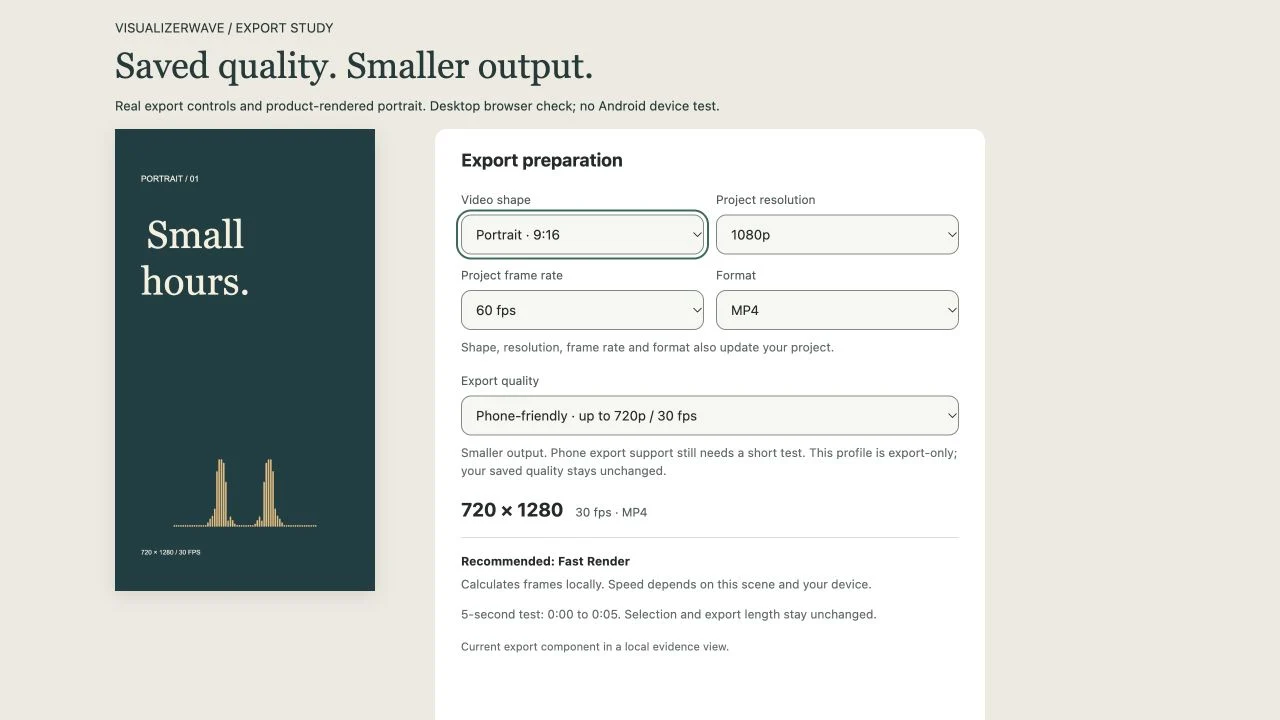
In the newer editor, open Export video, then choose Phone-friendly · up to 720p / 30 fps under Export quality. In the earlier export dialog, the corresponding option is Mobile-friendly export · up to 720p / 30 fps.
The profile reduces output dimensions and caps the frame rate at 30 fps. It preserves the shape and does not upscale a smaller project. It also leaves the saved project's quality unchanged. Changing the separate Project resolution or Project frame rate controls does change the project, so check which control you are using.
Here are examples calculated with the current export-profile helper:
| Saved project | Phone-friendly output | What changes |
|---|---|---|
| Portrait: 1080 × 1920, 60 fps | 720 × 1280, 30 fps | Dimensions and frame rate decrease |
| Landscape: 3840 × 2160, 60 fps | 1280 × 720, 30 fps | Dimensions and frame rate decrease |
| Square: 1080 × 1080, 30 fps | 720 × 720, 30 fps | Dimensions decrease |
| Small portrait: 480 × 640, 24 fps | 480 × 640, 24 fps | No upscaling or frame-rate increase |
“Up to 720p” is a size limit, not a phone compatibility certification. Smaller frames reduce the work per frame; they do not guarantee that every browser supports the selected encoder or that a long job will finish.
4. Export five seconds and inspect the saved file
The newer export dialog has an Export 5-second test action. It tests a short range without replacing your intended full export length. The earlier mobile dialog also offers short section lengths.
Keep the page visible and the screen unlocked during export. Once it finishes, use Save video where offered and open the saved file in the player or destination app you intend to use.
Check these four things before the full render:
- Playback: the video opens and continues moving beyond its first frame.
- Framing: the portrait or landscape shape is correct, and titles stay inside the frame.
- Sound: your own export contains the intended track, with sensible sync and no unexpected silence.
- Saving: you can locate and reopen the file after leaving the editor.
A five-second success is useful evidence for that short configuration. Repeat with a representative longer section before committing to a whole song. A phone's memory, scene complexity and chosen browser can change the result.
For the broader format and quality decision, the export settings guide compares real desktop outputs at 720p, 1080p, 4K and 30/60 fps. Its measurements are not an Android performance test.
A real portrait export using the smaller profile
For this example, we kept the saved project at 1080 × 1920 and 60 fps, selected the phone-friendly profile, then rendered 720 × 1280 at 30 fps through VisualizerWave's actual scene renderer and MP4 exporter.
Eight seconds, 240 frames, H.264 MP4, with no audio stream. The movement uses internal audio analysis, but this public example is visual only. It confirms the profile's output dimensions in a desktop-browser product test; it does not establish Android encoding performance or soundtrack support.
The cover image captures the real export-preparation component alongside this rendered composition in a local test view. It shows how saved project quality and output quality can differ. It is not a screenshot of an Android app.
Other Android sound visualizers: documented options
For listening or a wallpaper, check the native app's source modes. For a browser alternative, compare its mobile export requirements. These are documented options, not hands-on recommendations or export benchmarks:
| Option reviewed | What its current documentation describes | What remains to check |
|---|---|---|
| Music Visualizer by h6ah4i | Built-in player, Snoop and microphone modes; wallpaper/display modes; video recording mode | Whether your source works and the current recording limits on your device |
| Avee Music Player (Pro), by Daaw Aww | Local playback, editable visualizers and video export; device-dependent resolution options | Which export controls and logo-removal options require its Premium subscription |
| SoundTools Music Visualizer | A browser alternative whose page documents Android Chrome export and a smaller mobile configuration | A saved export from your actual phone; its desktop effects and mobile options differ |
Do not use an old “live visuals only” description to rule out recording: h6ah4i's current listing now names a video-recording mode. Conversely, a listing's “up to 4K” option does not prove that your phone can complete a 4K export. We did not verify free-tier export limits, watermarks or Android performance for these tools.
An Android audio visualizer's permission label can also be confusing. Android's Visualizer API provides reduced audio data for visual analysis; it is not itself a soundtrack-recording interface. A permission named Record audio therefore does not, on its own, tell you whether an app is using the microphone or capturing another player's output. Check the app's documented source mode.
If the browser preview works but export fails
First reduce the test to a short section, a still background and the phone-friendly profile. Recheck compatibility in the exact browser you opened. If the dialog reports that the chosen format is unavailable, select an offered format your destination accepts or move the export to desktop.
Keep ordinary video saving separate from Long Set direct-to-disk. Extended recordings use a different file-writing path; a browser that saves a short clip does not automatically support it. Follow the compatibility result for the actual device rather than assuming a phone can handle a DJ-set-length job.
VisualizerWave analyzes and renders your media locally in the browser. Account, checkout and application delivery still use the network. It is a paid browser tool at $19 once, with unlimited exports; purchasing access does not add missing browser capabilities.
For your own release, the useful result is a video you have saved, reopened and checked. Start with that small proof, then build the complete version. See VisualizerWave's one-time offer.