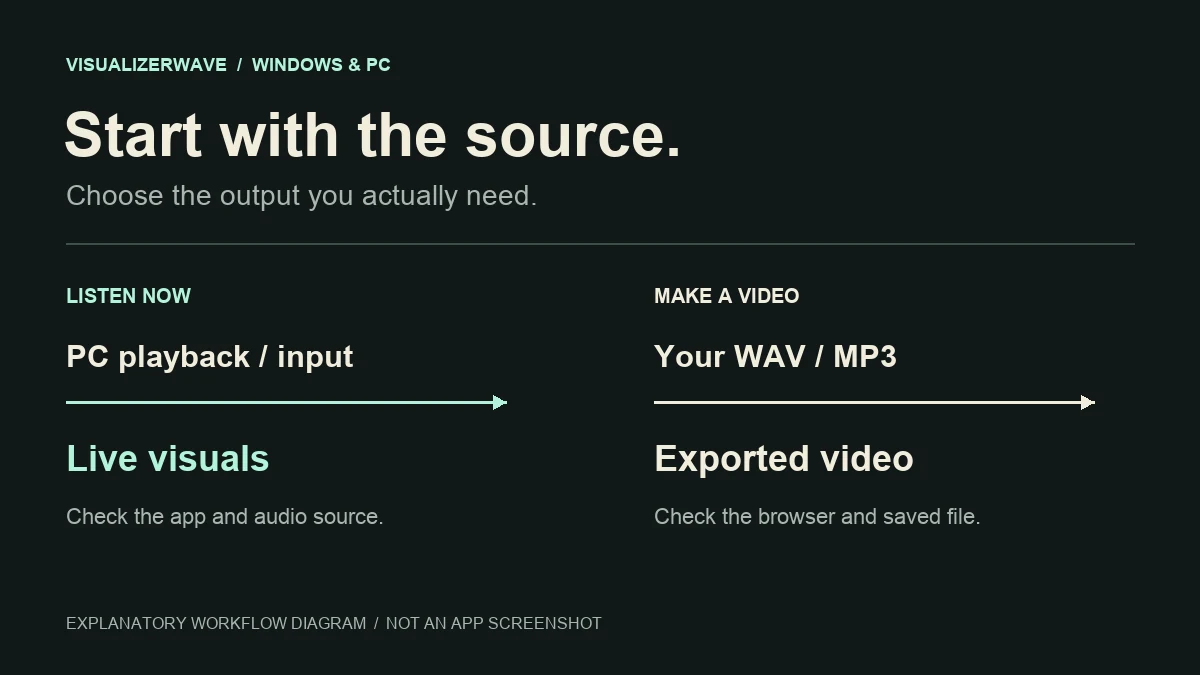
A Windows music visualizer can serve two different jobs: show live graphics while music plays on your PC, or turn your own recording into a finished video. For live playback from another application, projectM is a candidate. For songs stored on the device or microphone input, Spectrum – Music Visualizer documents those sources. For a release video with artwork and titles, VisualizerWave uses an imported audio file and a browser export workflow.
Choose the audio source first, then the output. A microphone-driven display, a player plug-in and a video maker do not automatically receive the same music or produce the same deliverable.
Research scope: This is a documentation-based comparison checked October 23, 2026, published by VisualizerWave. We reviewed official listings and platform documentation; we did not run the Windows applications or benchmark their performance. The silent product animation below is an existing export example, not a Windows compatibility test.
Which Windows visualizer fits your source?
| Your task | A starting point | What to verify |
|---|---|---|
| Watch visuals driven by another app's playback | projectM's standalone/Steam application | The selected audio source, output device and current Windows requirements |
| Visualize songs saved on the PC | Spectrum – Music Visualizer | Its device music-library workflow and support for your files |
| React to a microphone or external input | An app that explicitly supports that input | The selected device and whether it receives the intended signal |
| Use an older player's built-in effects | The specific legacy player | The exact application and version named in the instructions |
| Make a branded video of your finished track | VisualizerWave | Local audio import, browser capabilities and a saved test export |
The broader audio visualizer comparison focuses on finished video files. This guide covers the Windows player and input choices that come before that export decision.
projectM: a candidate for live PC audio
The official projectM Music Visualizer Steam listing describes visuals driven by audio from other applications or a microphone. It lists Windows 10 64-bit and above and an OpenGL-compatible GPU among its minimum requirements. These are the publisher's requirements, rather than a performance result from this guide.
Its documented starting sequence is to play music, launch projectM and press F1 for the available help options. Check the input controls in the version you install before changing Windows-wide audio settings.
The application matters as much as the name. projectM is also a visualization library used in other software. The project's official documentation distinguishes its maintained applications from third-party integrations; a feature of one host is not automatically available in every projectM-based app.
For listening, look for a responsive full-screen display and an input that follows the music you actually play. For a release video, separately check recording/export, resolution, titles and the terms covering your intended use. A live display alone does not establish a complete publishing workflow.
Spectrum: local songs or microphone input
Spectrum – Music Visualizer, by Y. Mochiduki, is the specific Microsoft Store app reviewed here. Similar names can lead to different products.
Its listing describes effects generated from a music library or microphone, and its usage instructions say the selected songs should be stored on the device. That supports evaluating it for local listening. It does not establish capture from every other Windows application.
Before choosing it for streaming playback or video creation, check those capabilities directly. We did not verify a recording/export route or complete a file import in Spectrum. The listing also indicates in-app purchases, so the presence of a free download should not be treated as evidence that every feature is included.
Windows Media Player Legacy and Media Player are different
Older Windows visualizer instructions often refer to Windows Media Player Legacy. Microsoft's current support documentation lists it as an optional feature in some Windows 11 editions and distinguishes it from the newer Media Player app.
If an old tutorial tells you to open a Visualizations menu that you cannot find:
- Check the exact application name and version you opened.
- Check whether the tutorial describes Windows Media Player Legacy.
- Consult Microsoft's instructions for your Windows edition before deciding whether that older player is the workflow you want.
Microsoft's legacy SDK documentation refers to View → Visualizations in the old player. That documents the legacy feature; it does not prove the same menu exists in the newer app or that every old plug-in works on your current PC.
Avoid treating a missing menu as proof that your music file or graphics hardware is broken. First establish that the instructions match the application. This guide does not test legacy plug-ins or provide a procedure for restoring discontinued components.
iTunes instructions also belong to a specific app
Apple still documents a visualizer in iTunes on PC: play available music, choose View → Visualizer → Show Visualizer, and use ? for commands or Esc to leave the display.
Apple's guide also explains that installing Apple Music or Apple TV for Windows changes which media iTunes handles. Do not apply an iTunes visualizer tutorial to Apple Music for Windows simply because both are Apple music applications. Those iTunes steps are useful when iTunes is the player you actually use.
For a dedicated listening visualizer with another player, the G-Force comparison covers its documented player/input options and the separate release-video questions.
Why the visualizer moves for the wrong sound
On Windows, microphone capture and playback capture are different inputs. A microphone can hear the room and speakers. A loopback input can receive audio being played through a computer output device. Microsoft documents WASAPI loopback as a way for applications to capture the playback stream; the application must implement and expose the relevant capability.
The following checks follow from that source distinction. They are diagnostic suggestions, not bugs reproduced in the apps above.
| What you notice | What to check first |
|---|---|
| The picture reacts when you speak, but barely follows the song | Whether the app is using a microphone instead of playback capture |
| Switching from speakers to headphones changes the response | Whether the previous response came through the room, or the selected playback device changed |
| The visualizer stops following music after you switch to USB audio | Whether its selected input/output endpoint still matches the device playing the track |
| Extra sounds affect the display | Whether the selected source includes a broader playback mix |
Start with the application's own source selector and documentation. Do not assume you need to install a virtual cable or enable a device called Stereo Mix: Microsoft's documentation distinguishes hardware loopback devices from WASAPI loopback, which does not require that hardware device.
For your own release, importing the final WAV or MP3 avoids needing to capture another player's live output. That is the source model VisualizerWave uses; it is not a live Spotify or Windows system-audio visualizer.
Make a visualizer video from your own track on Windows
Use a file-based workflow when the result you need is a video you can upload, with the right artwork, title and ending:
- Open the compatibility check in your intended browser. VisualizerWave recommends current desktop Chrome or Edge for its export paths. Available codecs and file-writing features still depend on the browser and device.
- Import the finished WAV or MP3. Use the mix you intend to release, rather than capturing a listening session from another app.
- Build the composition. Choose the canvas shape, add artwork and titles, and preview both a quiet passage and the strongest section.
- Export a short sample. Inspect the saved video's movement, text, audio and ending before committing to a full render. A working preview is not proof that the encoded file is correct.
The complete music visualizer tutorial shows the current controls, composition and export dialog. This previously completed example shows the kind of finished visual deliverable:
Reused from the complete tutorial: an actual VisualizerWave export at 1920 × 1080 and 30 fps. This public animation contains no audio stream. It illustrates the composition and output, without claiming a new Windows export test.
VisualizerWave analyzes and renders your media on your device. Account and checkout services use the network. The current price is $19 once, with unlimited exports; that purchase does not turn it into a native Windows player plug-in.
For long recordings, check Long Set direct-to-disk support on the compatibility page. Ordinary downloads and direct file writing are different browser capabilities. Follow the result for your actual browser instead of assuming that every browser on the same PC offers identical export options.
Choose by the job you will repeat
For live listening, evaluate projectM when you need another app's playback, or Spectrum when its documented local-library or microphone workflow matches your source. For older built-in effects, first identify the exact player the instructions describe.
For your own release videos, choose a workflow built around importing the master, arranging the artwork and checking an encoded file. Save a portable .visualizerwave project when you want to reuse that design for the next track.