For an audio visualizer on Mac, start with the source and the result you want. Apple Music's built-in visualizer is a starting point for visuals while listening in Music. A native app such as Ferromagnetic offers another route for live visuals. VisualizerWave takes a finished audio file and makes a release video in the browser.
These workflows need different checks. A visualizer responding to your microphone may not be receiving the track playing in another app. A full-screen light show also needs a recording or export workflow before it becomes a file you can publish.
Test scope: VisualizerWave publishes this comparison. We completed the silent Mac export shown below using its actual renderer and exporter. Apple Music, Ferromagnetic and Animus were checked through their documentation or official pages; their native apps were not run for this guide. Research was checked October 22–23, 2026.
Choose by the audio source
| What you want | Starting point | Check before choosing |
|---|---|---|
| Visual effects while listening in Music | Apple Music's built-in visualizer | The song is playing in Music |
| Live visuals from another audio source | A native app such as Ferromagnetic | Current Mac requirements, input method and included features |
| Graphics reacting to sound around the Mac | A microphone-driven visualizer | The selected input and microphone permission |
| A video of your own finished track | VisualizerWave with a WAV or MP3 | Browser export support and the saved file |
| Waveform or spectrogram analysis | An analysis tool such as Sonic Visualiser | The measurements and views your task needs |
For a broader video-export shortlist, see the best audio visualizers comparison. This guide focuses on the Mac-specific source, app and browser decisions.
Turn on the built-in Apple Music visualizer
Apple's Music guide for macOS Tahoe 26 documents this route:
- Open Music on your Mac.
- Play a song from an available source in Music, such as your library or Apple Music.
- Choose Window → Visualizer.
- Use Window → Visualizer Settings for available options. Some options depend on the selected visualizer.
- Press ? while the visualizer is running to see its commands. Press Esc to leave it.
These are Apple-documented steps, rather than a playback test performed for this article. Use the guide version matching your macOS release if your menus differ.
This is a useful first choice when your goal is watching visuals during listening. Apple's documented visualizer instructions do not describe composing a release video with your artwork, title and a finished MP4 export. Evaluate that deliverable separately.
Native Mac apps: check the current version and input
Ferromagnetic
Ferromagnetic's current App Store listing describes real-time visuals and a Mac requirement of macOS 13.0 or later. The listing also covers iPhone and iPad, so read the Mac compatibility entry rather than applying the iPhone requirement to your computer.
It is a free download with in-app purchases and subscription options. Its description distinguishes the visualizer features from FM Producer, which includes additional Mac features and video recording. A free download should not be read as a promise that every recording or performance feature is included.
We reviewed the listing; we did not install it, test its input routing or complete a recording. If its live visual approach suits you, check the input and purchase tier needed for your particular setup.
Animus and older visualizer recommendations
The official Animus page describes free, interactive Mac visuals driven by the built-in microphone, with keyboard controls for performance. That is a different input from directly capturing another app's audio.
The page we reviewed did not establish compatibility with the current Mac used for our test. We have not verified its installation or operation here. Treat it as a candidate requiring a current compatibility check, rather than assuming an older recommendation proves support for your macOS version.
The useful question for any native visualiser is: which signal reaches it? Check that before comparing the number or appearance of its scenes.
Microphone, system audio and a local file are different
A microphone captures the signal from the selected microphone or input device. If music reaches it through speakers, room sound and other noise can become part of that input. That is not the same source as the playback stream inside the computer.
For an app that captures system audio, follow its documented input method. Apple places relevant permissions under System Settings → Privacy & Security → Screen & System Audio Recording on current macOS. Microphone access is a separate permission. Granting microphone access alone does not establish that an app is receiving system audio.
For a release video, importing the final recording avoids that routing question. VisualizerWave analyzes the audio file you load; it does not act as a live system-audio or Spotify playback visualizer. Use the version of your track intended for publication, including any producer tag or final mix changes.
If you need to study the recording rather than make promotional visuals, the Sonic Visualiser comparison explains that separate task.
Make a music visualizer video in the browser on Mac
For your own recording, the workflow in VisualizerWave is:
- Import the finished WAV or MP3. Confirm the opening and ending are the versions you want listeners to hear.
- Choose a composition. Use landscape for a regular YouTube release, or build a separate vertical layout for a short preview. Add artwork and artist/track text.
- Check the visual response. Preview a quiet passage and the strongest section. Keep the title clear when the visualizer moves furthest.
- Export a short section first. Run the compatibility check, use a supported format, then inspect the saved file before rendering the whole track.
The complete music visualizer guide covers setup and export. For a restrained frequency-based design like the example below, follow the minimal line tutorial.
VisualizerWave's media analysis and video rendering run on your device. It costs $19 once, with unlimited exports. MP4, WebM and higher-resolution choices depend on the browser and device; the Mac name alone does not establish every export capability.
Our Mac check: one completed silent MP4
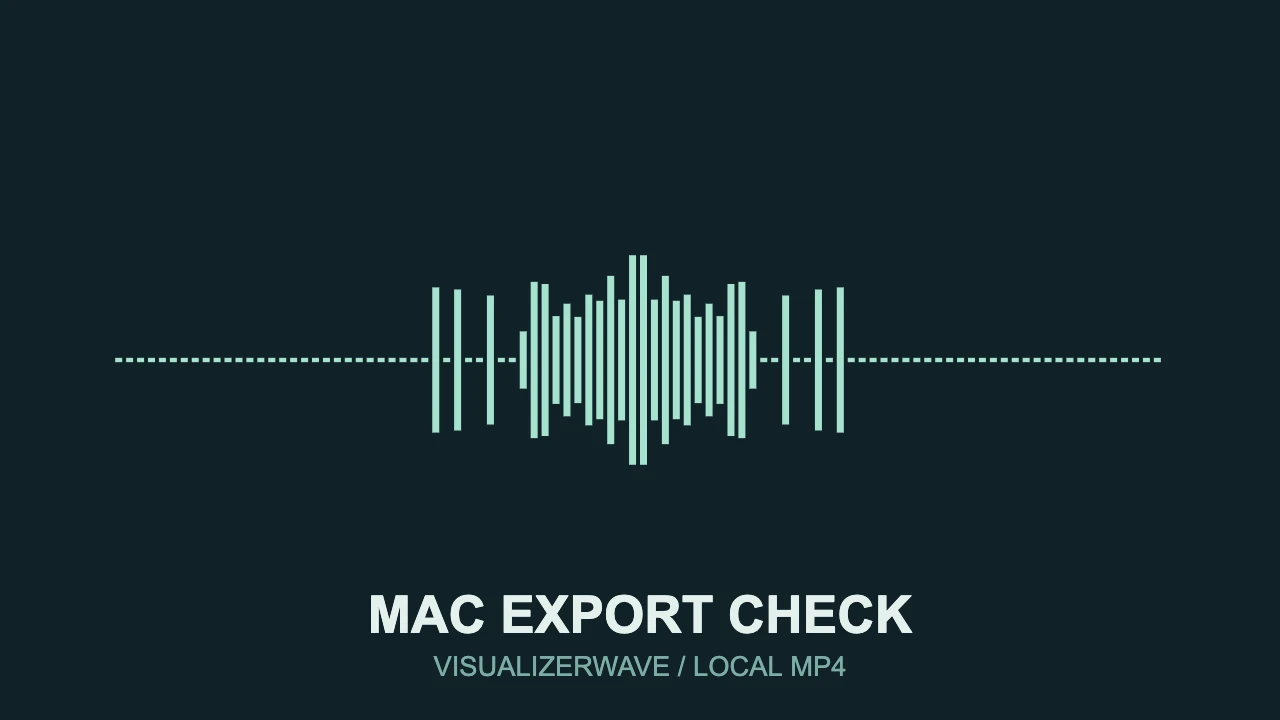
We used the actual VisualizerWave scene renderer, audio analyzer and video exporter in a local test page. The composition uses Mirror Line, mint-colored bars and editable title text. An existing local test recording drives the visual response; the exported animation deliberately contains no audio track.
Actual product-renderer output, not an interface mockup. The cover is a frame from the same composition. This is a local code-fixture test, rather than a test of editor onboarding or a native Mac app.
| Test condition | Observed result |
|---|---|
| Host | macOS 26.5.1, arm64 Mac |
| Browser environment | Chromium-based in-app browser reporting Chrome 155 |
| Video | H.264 in MP4, 1280 × 720 |
| Frame rate and length | 30 fps, 180 frames, 6 seconds |
| Soundtrack | No audio stream requested or present |
| Validation | Saved file decoded; dimensions, frames and streams inspected |
This confirms a short, silent video export in that environment. It does not test soundtrack encoding, Safari, Firefox, Intel Macs, 4K or full-length renders. The browser also reported other export capabilities, but an available feature is not a completed export through every route.
We did not run a speed contest against the native apps. Compare the tools by the job and source they support, then test the output you actually need.
Check your browser before a long render
Open VisualizerWave's compatibility page in the same browser you plan to use for the video. It checks the relevant browser features and offers a local performance estimate. A short exported section is still the practical check for your chosen design.
For longer audio, pay attention to the app's Long Set direct-to-disk requirement. A browser that offers ordinary file downloads does not necessarily expose the direct file-writing API that route needs. Follow the compatibility result rather than assuming all browsers on the same Mac behave identically.
If you change browsers, repeat the check. If your file or design changes substantially, inspect a representative export again.
Pick the workflow you will use
Choose Music's built-in visualizer for listening in Music. Evaluate a native live visualizer when the source or performance controls matter. Choose a file-based video maker when your deliverable is a finished release video with your artwork and titles.
With VisualizerWave, save a portable .visualizerwave project if you want to reuse the composition for another track. Replace the recording and artwork, update the text, then check the new video's strongest passage and ending.
Make your next release video with VisualizerWave for $19 once.